 Power Viewer
On-Premises Edition Admin Console Guide
About this guide
Day-to-day administration of the on-premises album database is done entirely from the browser-based admin console. This guide is for console administrators — no command-line work appears here.
Access: https://<server FQDN>/admin-console/login (reachable from your internal network only)
Logging in
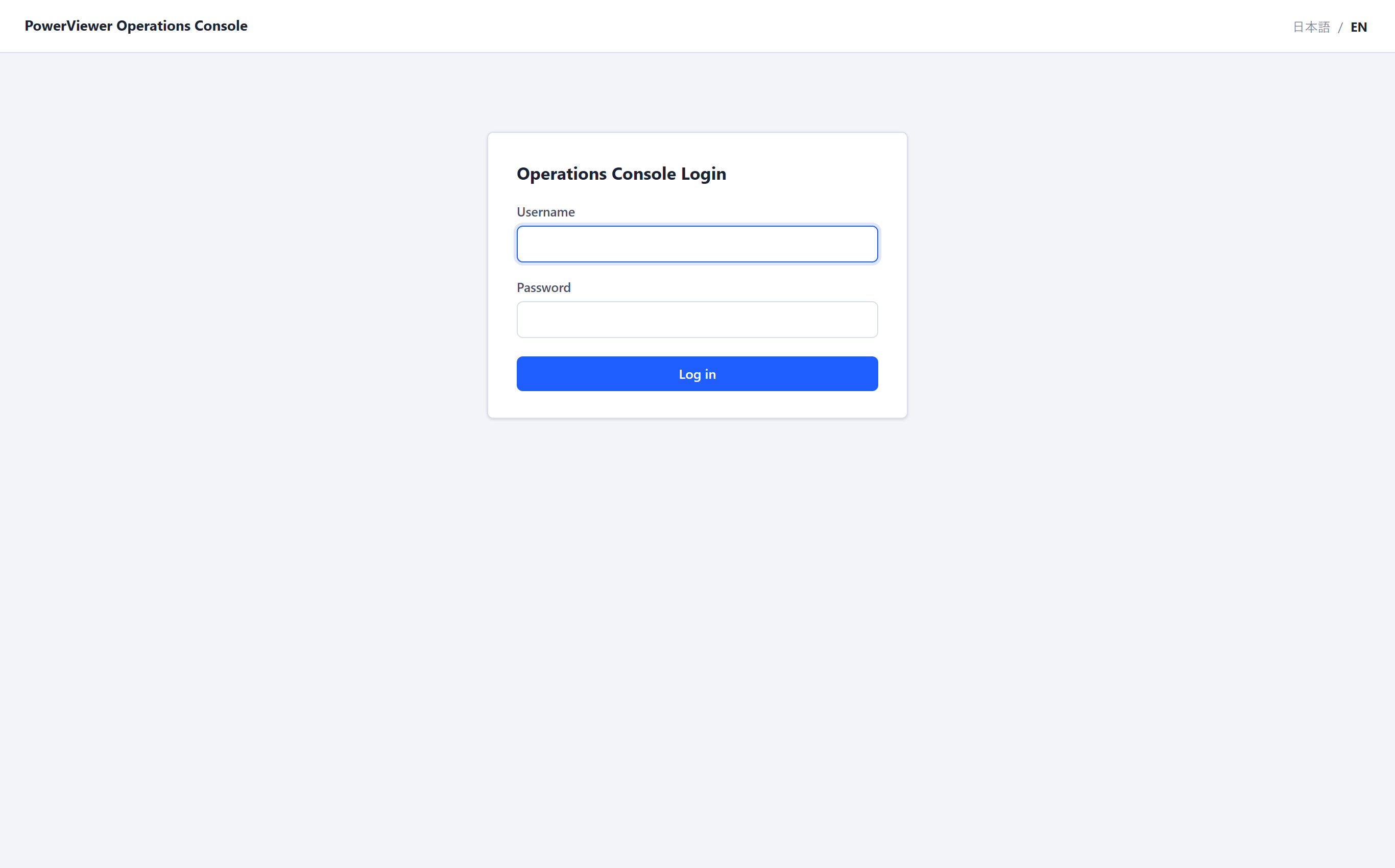
Log in with your username and password.
- On first login you are always taken to the password-change page. You cannot reach any other screen until you set a new password
- Password policy: 12+ characters, 3 or more of upper case / lower case / digits / symbols
- 5 consecutive failures lock the account for 15 minutes (the remaining attempts are shown on screen). If urgent, ask another administrator to unlock you
- You are logged out automatically after 30 minutes of inactivity
Screens
Navigate with the sidebar on the left. The “日本語 / EN” control at the top right switches the display language at any time (available on the login screen too).
| Menu | Content |
|---|---|
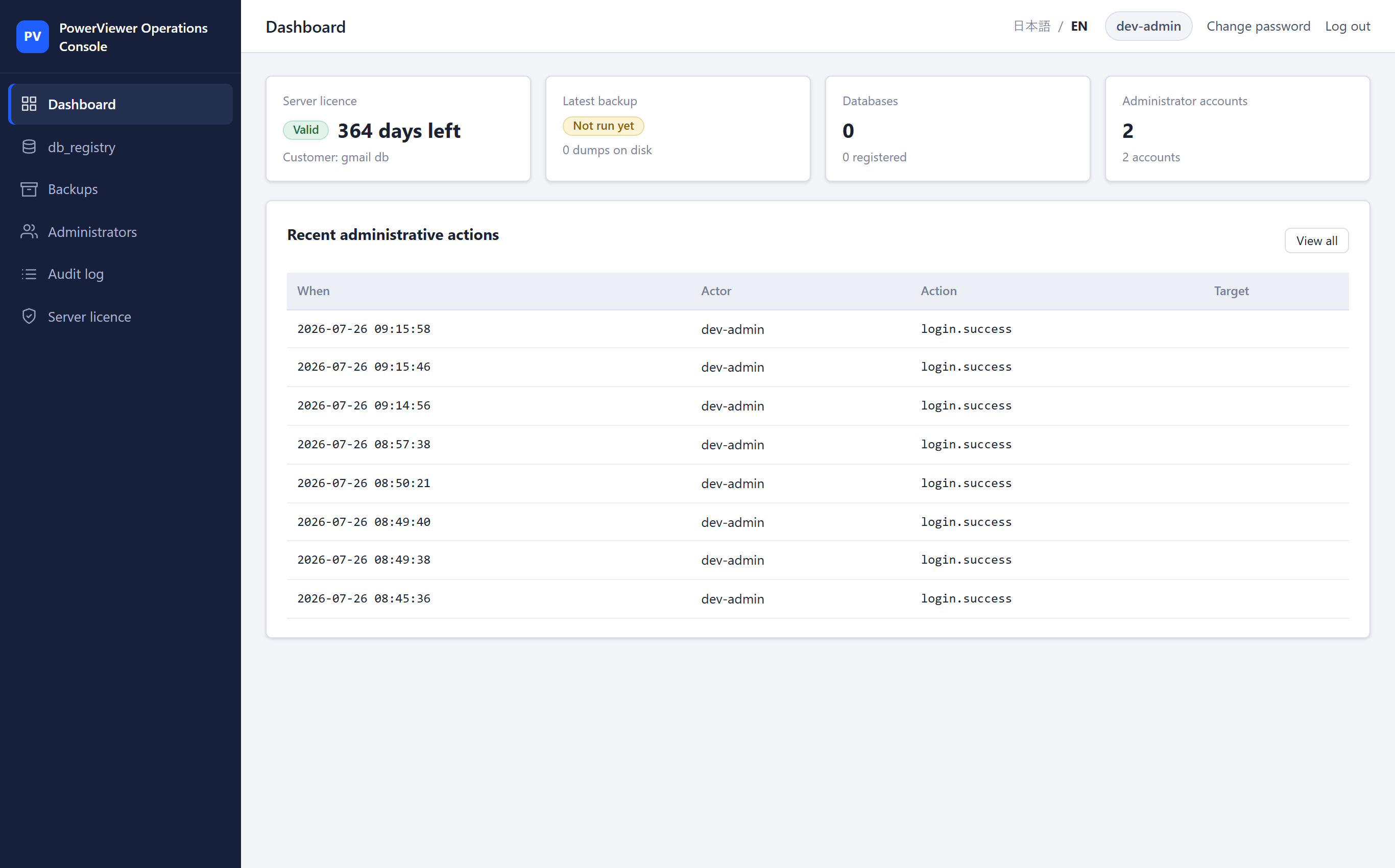
| Dashboard | Summary of licence status, latest backup, databases and administrator count, plus recent administrative actions |
| db_registry | Database status and migrations |
| Backups | Manual backup and restore |
| Administrators | Admin-console account management |
| Audit log | Record of administrative actions (read-only) |
| Server licence | Licence status and renewal |
Right after login you land on the dashboard. Each card links to its page.
Server licence status and renewal
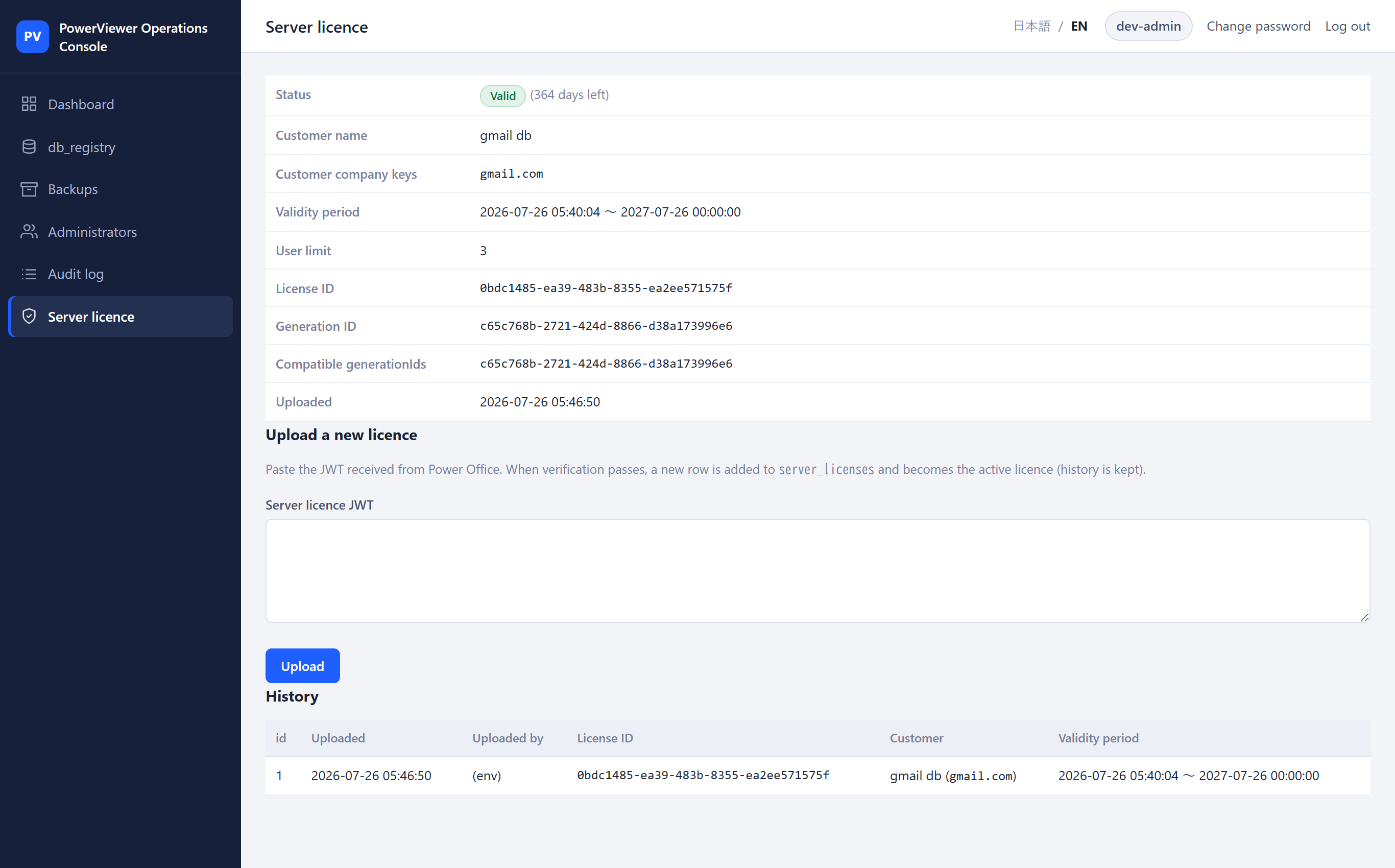
The server licence has an expiry date. As it approaches, a banner appears at the top of every console screen.
| Display | State | What to do |
|---|---|---|
| (no banner) | Valid | Nothing |
| Yellow banner “expires in N days” | 30 days before expiry | Ask Power Office to renew the licence |
| Red banner “expired N days ago; full stop in M days” | Grace period (30 days after expiry) | Still usable, but renew urgently |
| Red banner “grace period has ended” | Stopped | Power Viewer logins are blocked. Only Backups and Server licence remain usable in the console |
Renewal: receive the new licence (a long string) from Power Office, paste it into the text box on the Server licence screen and press Upload. On successful verification the new licence takes effect immediately and the banner disappears. Previous licences remain listed as history at the bottom of the screen.
The screen shows the customer name, customer company keys, validity window and user-account cap. On a server shared by group companies, multiple company keys are listed.
Backup and restore
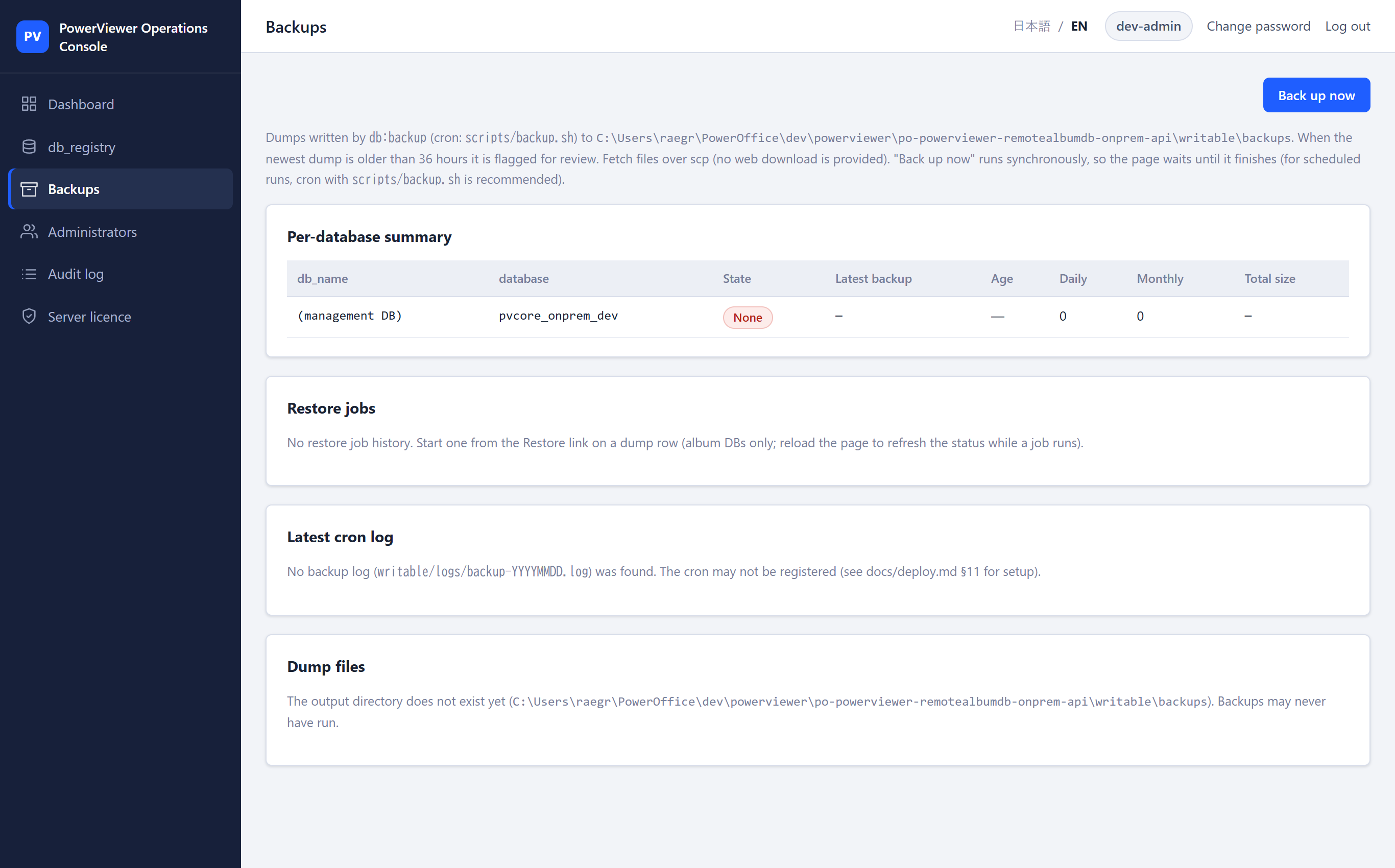
Backup: on the Backups screen, the “Back up now” button immediately creates dumps of the management and album databases and lists them. Nightly automatic backups (recommended: 03:00 daily) are configured on the server side.
Restore: pressing Restore on a listed dump opens a confirmation page. To prevent accidents you must type the target database name by hand to confirm. The restore runs in the background; progress is visible on the restore-jobs screen.
Caution: a restore replaces current data. Always take a fresh backup before restoring.
Managing administrator accounts
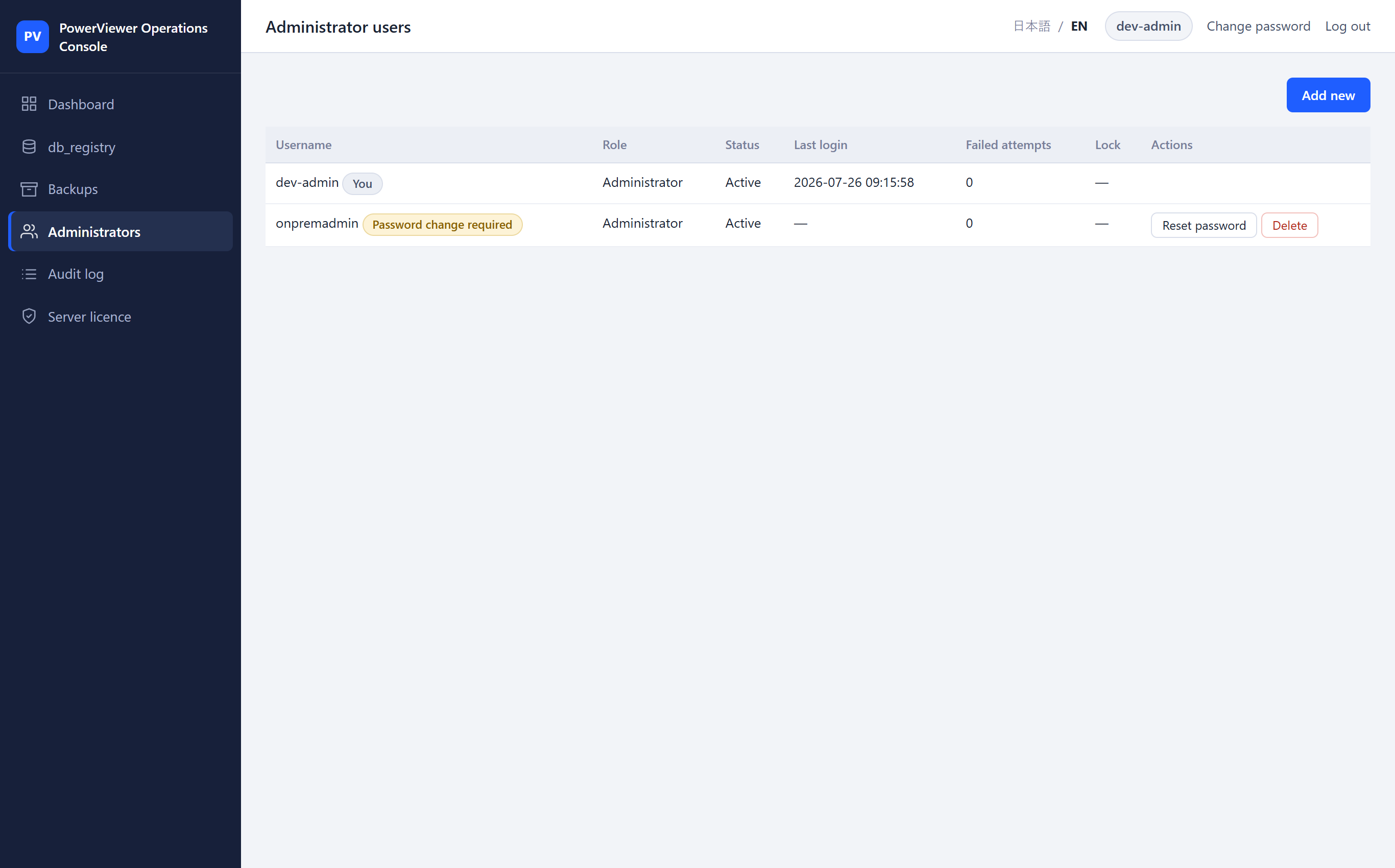
Operate from the Administrators screen.
- Add: set a username and an initial password. The new administrator must change the password at first login
- Password reset: reset another administrator’s password to a temporary one (they must change it at next login). Hand over the temporary password by a safe route such as in person
- Unlock: clear a lockout caused by failed logins
- Delete: confirm by typing the target username on the confirmation page
For safety, you cannot delete or reset your own account (protection against losing all administrators). Running with two or more administrators is recommended.
Audit log
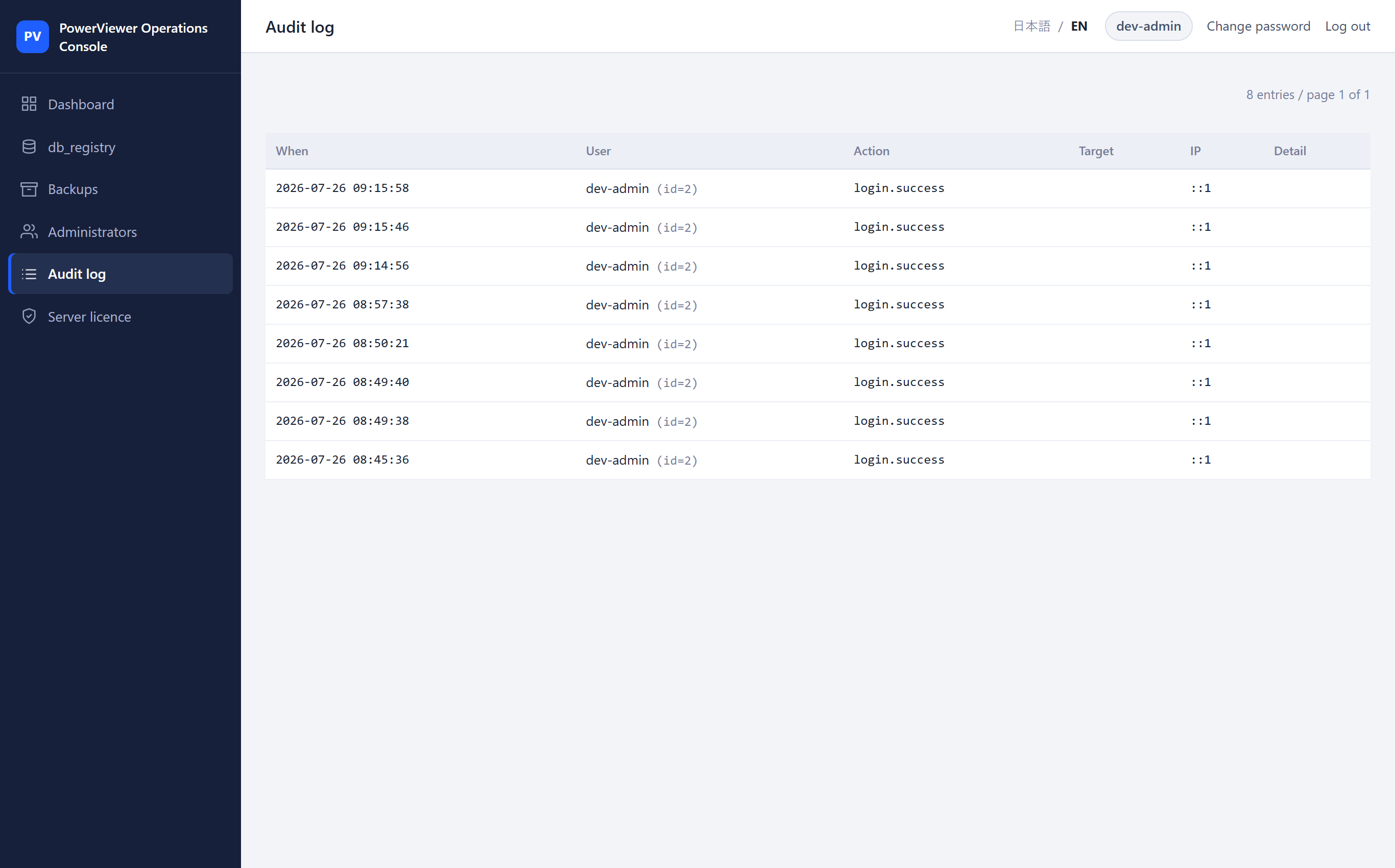
The dashboard also shows the most recent actions; the full history lives on this screen. Every console action (login success/failure, password changes, administrator add/delete, backup runs, licence uploads, and so on) is recorded automatically and can be browsed newest-first on the Audit log screen. Each record includes the actor, timestamp and IP address. Records cannot be edited or deleted (GxP audit support).
db_registry (database status)
Shows the hostname, schema and status of the connected database. Database updates accompanying version upgrades (migrations) can also be run from this screen, but normally only do so when instructed by Power Office.
Troubleshooting
| Symptom | Action |
|---|---|
| Cannot log in (locked) | Ask another administrator to unlock you. If all administrators are locked, contact Power Office support |
| Red licence banner will not go away | Upload the new licence on the Server licence screen. If you do not have one, contact Power Office |
| Errors or unexpected behaviour | Follow “Reporting an incident” in the Operations Guide and contact support with logs attached |