 Power Viewer
User Guide
v1.0(June 21, 2026) · App version: 2.8.0+
0. Introduction
Power Viewer is a Windows desktop application for viewing and managing pharmaceutical marketing-authorization documents (eCTD: electronic Common Technical Document). It supports eCTD v3.2.2 / v4.0 and multiple regulatory authorities (PMDA, FDA, EMA, and others).
This guide explains operations task by task, for everyone from first-time eCTD readers to administrators who deploy and operate the application across an organization. The first thing to read is Chapter 1 (Quick Start).
0.1 Badge legend
The badges shown next to each section heading indicate the permissions and conditions required to use that feature.
- 📖 Features available with the Viewer role (viewing-focused)
- ⚙️ Features available with the Administrator role (database management and configuration)
- 💎 Features that require a license key (paid features such as album database integration)
Power Viewer offers two usage models: free use that requires no license key, and organization-oriented use that requires a license key (LicenseKey login). Team operation and access-rights management using an album database are available only in the latter (💎). See 8.1 for details.
1. Quick Start 📖💎
This walks a member of an organization that already has a license key through the shortest path: “install → log in → open and view an eCTD.”
1.1 Install and launch
Purpose: Get Power Viewer into a usable state
Steps:
- Run the installer and follow the wizard
- After installation completes, launch Power Viewer

Verify: The application launches and the login screen (or initial setup screen) is displayed
1.2 Log in
Purpose: Log in to Power Viewer
Prerequisites: Receive the path to the group policy file from your administrator
Steps:
- Launch Power Viewer
- On the initial setup screen, enter the path to the group policy file you received (once set, this is not needed on subsequent launches)
- Choose a login method (Entra / Active Directory / Credential), enter the required information, and log in
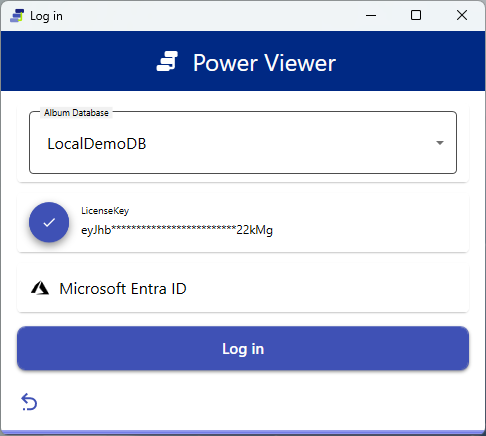
The login method is determined by your organization’s group policy. See 5.5 for the differences between methods. For individual use without a license key, you can switch to free-use login (Microsoft / Google / email OTP) from the initial setup screen.
1.3 Open your first eCTD
Purpose: Open and view an eCTD folder on your machine
Steps:
- Open “Open eCTD – Local” from the left menu
- Select and add a Sequence Folder (a folder containing
submissionunit.xmlorindex.xml) - From the extracted list of Applications, choose the target Application and open it
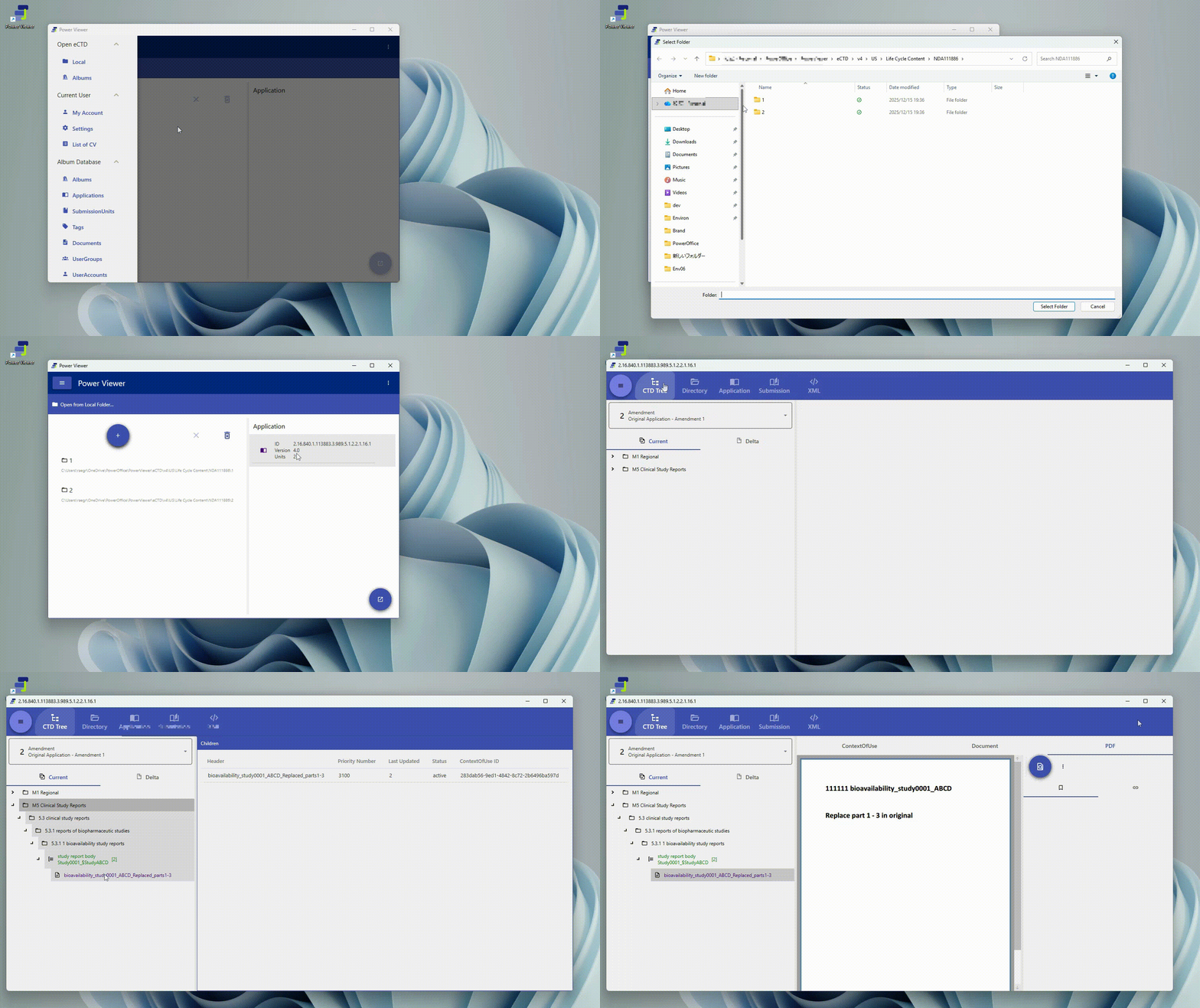
Verify: A viewing Window opens and the CTD Tree is displayed
2. Open an eCTD 📖
2.1 Open from a local folder
Purpose: Open a local eCTD visible in Explorer directly, without registering it in a database
Steps:
- Open “Open eCTD – Local”
- Add a Sequence Folder to the Left Pane (unneeded folders can be removed)
- In the Right Pane, select an extracted Application and click “Open”
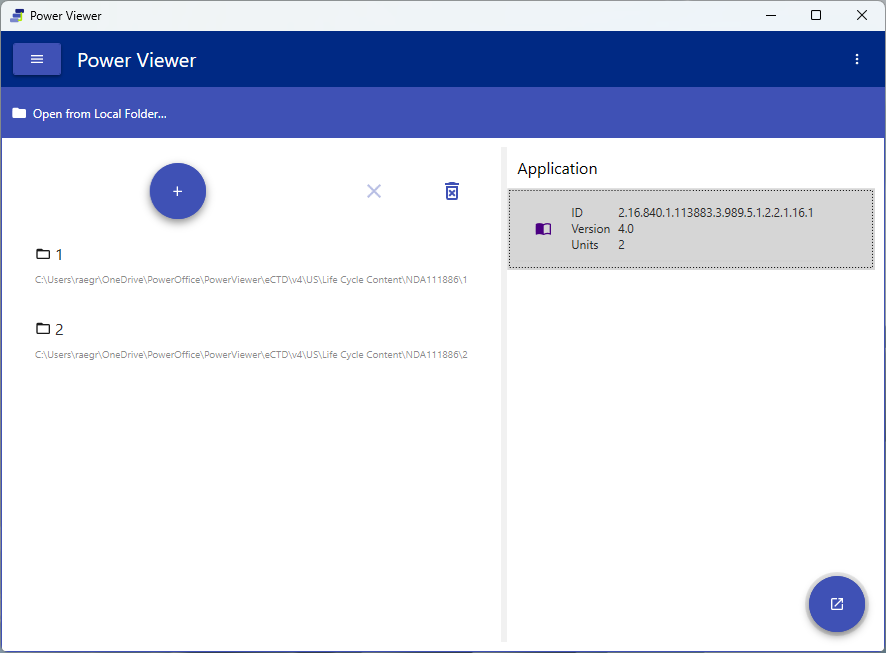
Verify: A viewing Window for the selected Application opens
Opening from a local folder is available even without a license key. The Application ID, version, regulatory authority, and specification are determined automatically from the contents of the eCTD.
2.2 Open from an album 💎
Purpose: Open an eCTD that is registered in your organization’s album database
Prerequisites: A valid license key and access rights to the album database
Steps:
- Open “Open eCTD – Album”
- Check the SubmissionUnits you want to view (uncheck any you want to exclude before loading)
- Run “Load” (cloud storage authentication may be requested as needed; results appear in Load Status)
- Once all targets have loaded successfully, click “Open eCTD”
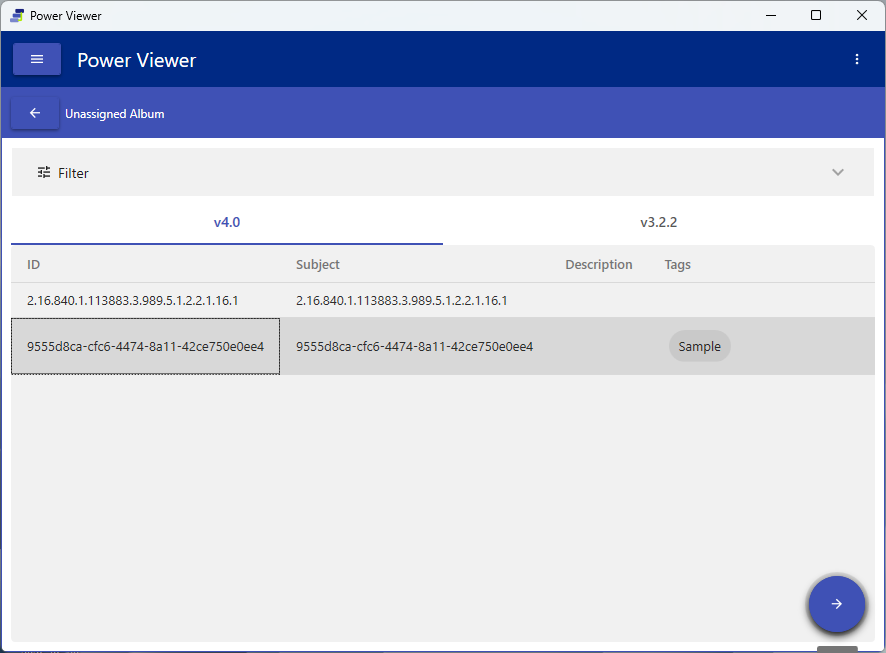
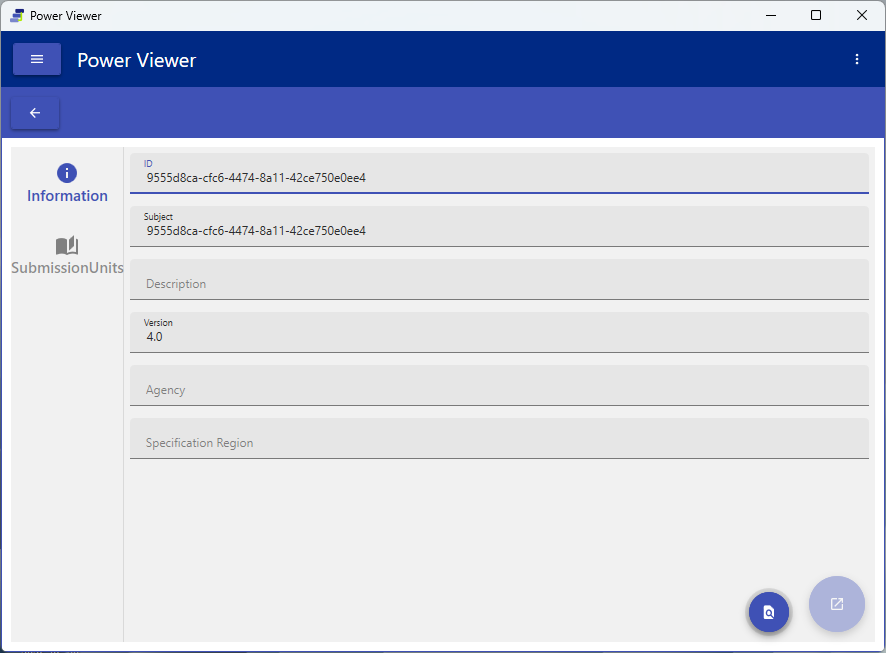
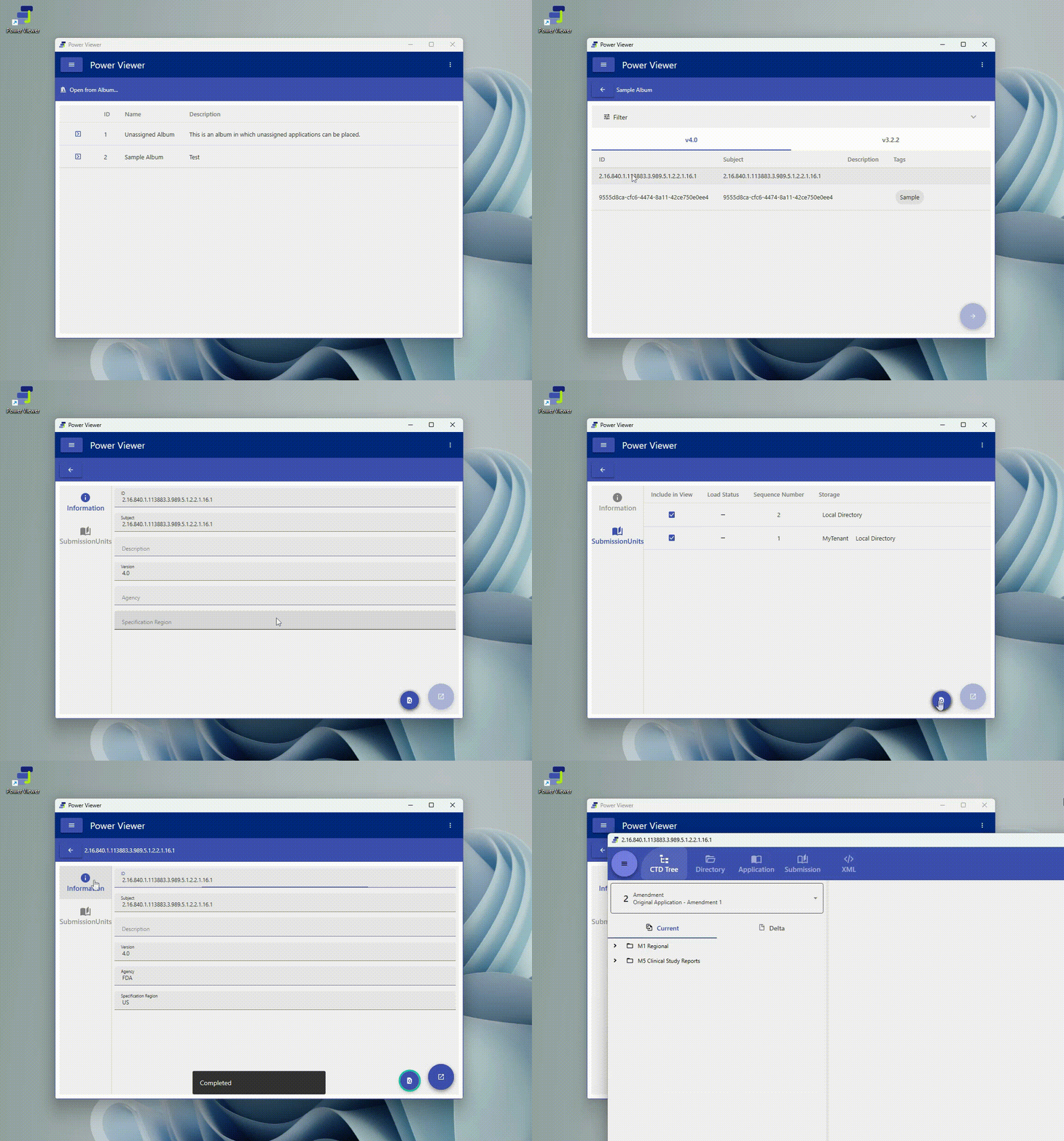
Verify: A viewing Window opens for the Applications that loaded successfully
A license key is required to use this feature. In addition, access rights (8.1) control which Applications / Documents you can view.
3. View an eCTD 📖
3.1 Overview of the viewer screen
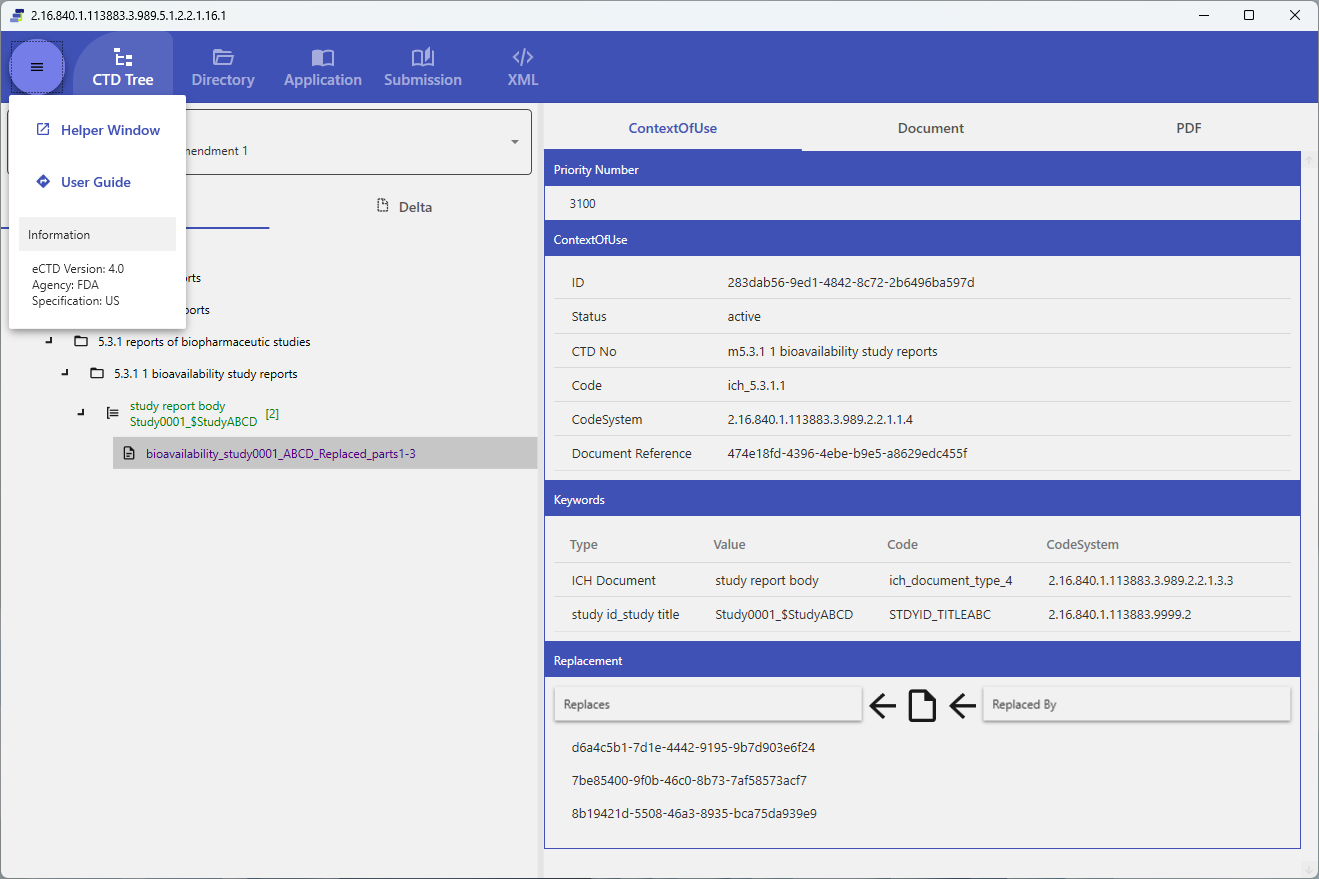
The viewing Window shows one Application at a time, switching between areas via the tabs at the top. From the menu button in the upper left, you can check the eCTD’s metadata (Version / Agency / Specification), open the Helper Window, and access a link to this user guide.
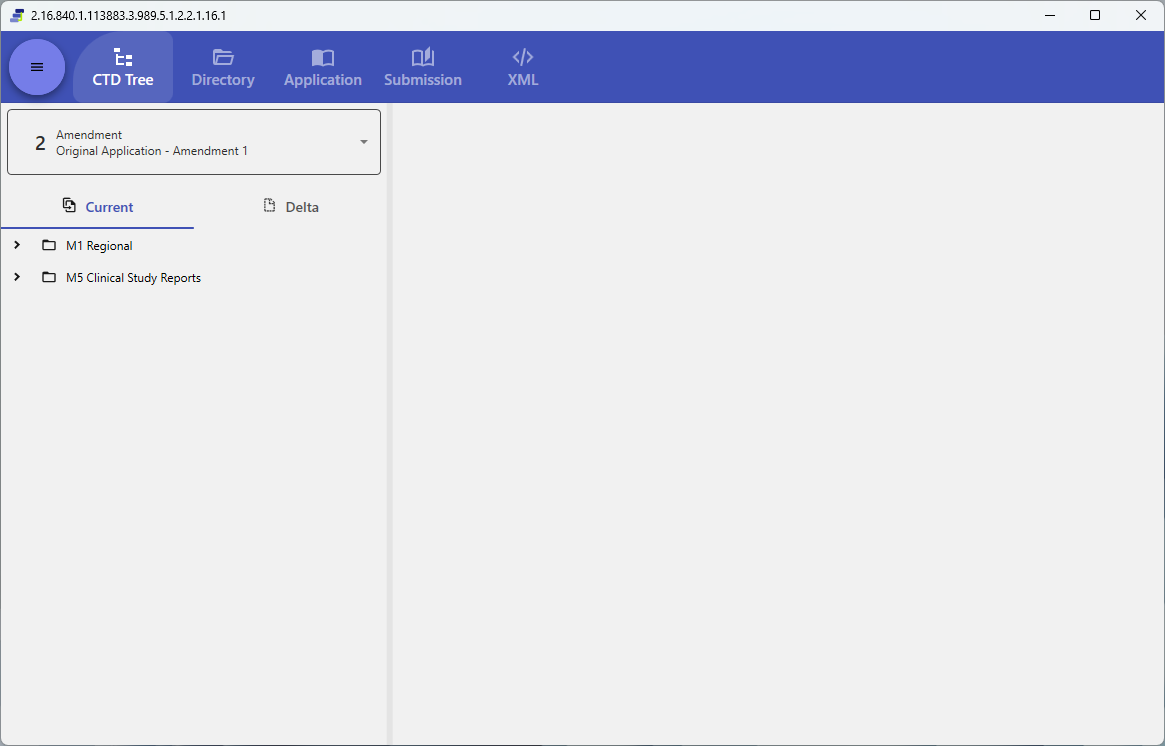
Main tabs:
- CTD Tree: Browse submitted leaves in a tree structure (the main way to view)
- Directory: Show the directory structure of the actual files
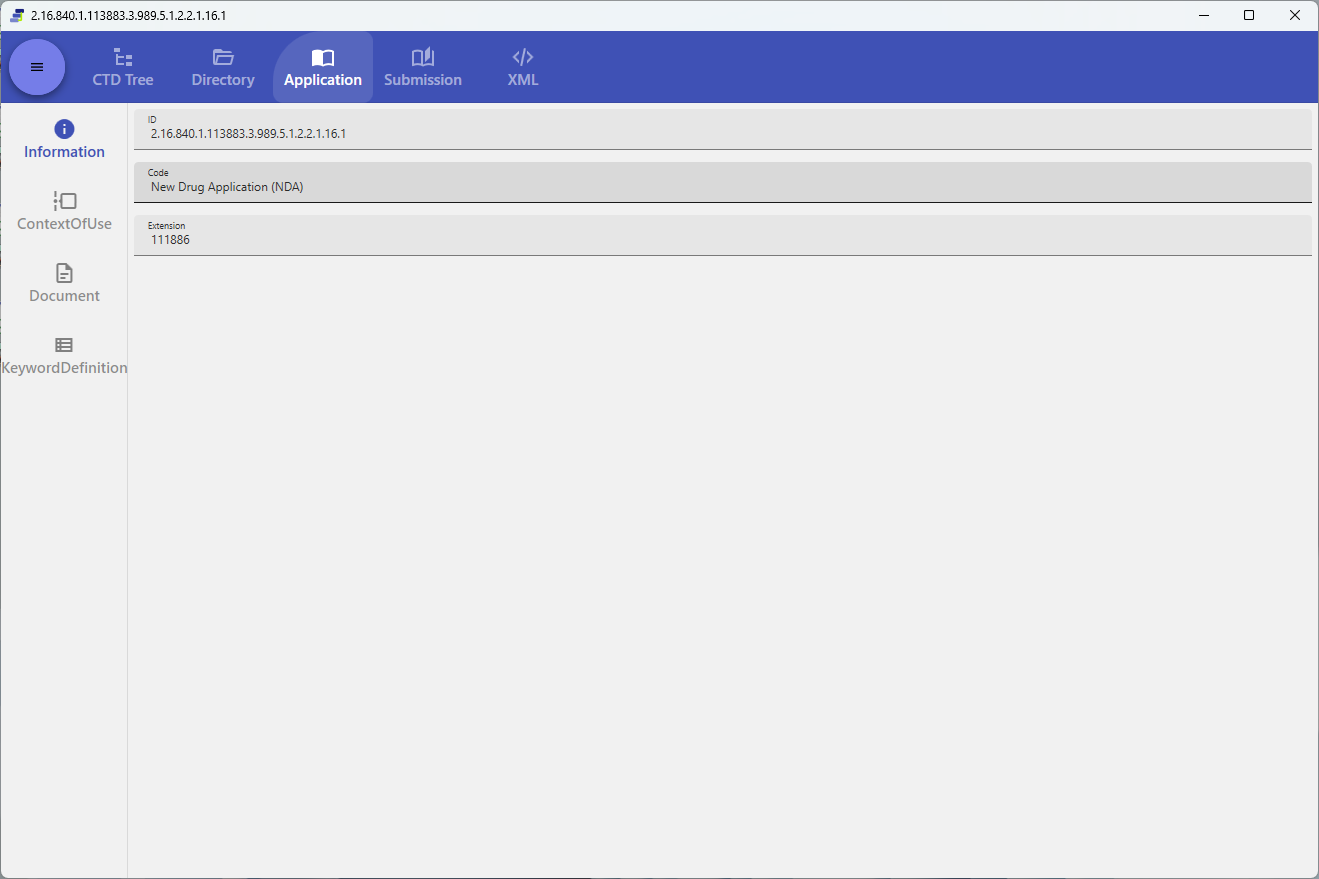
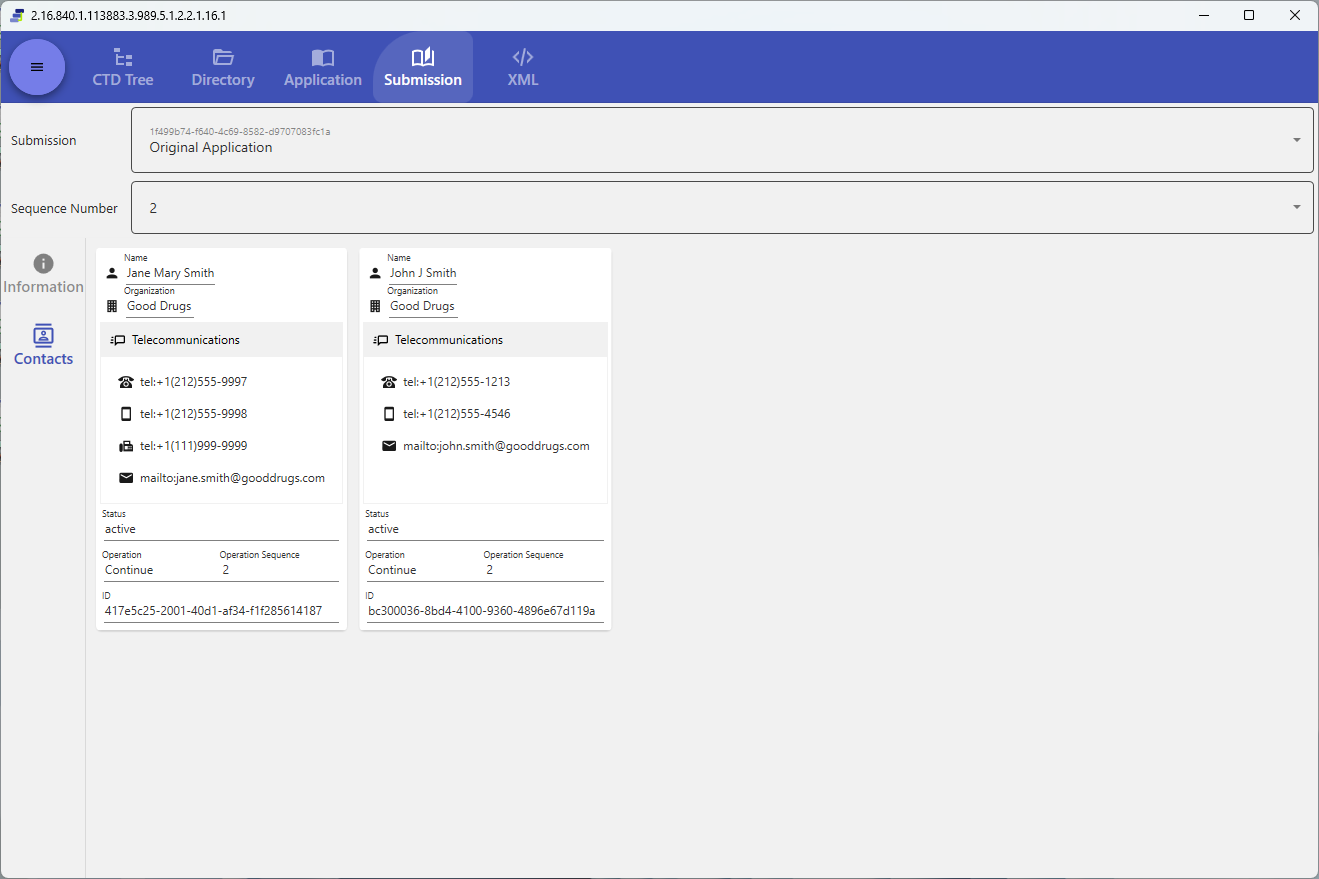
- Application / Submission: Show application/submission-unit information in table form
- XML: Show
submissionunit.xmlas-is - StyleSheet View / HTML: Show content formatted with an XSL stylesheet
3.2 Read documents in the CTD tree
Purpose: Trace and view submitted leaves in a tree structure
Steps:
- Open the “CTD Tree” tab
- Select a section (leaf) from the tree on the left
- The content of the selected leaf (PDF / XML, etc.) is displayed on the right
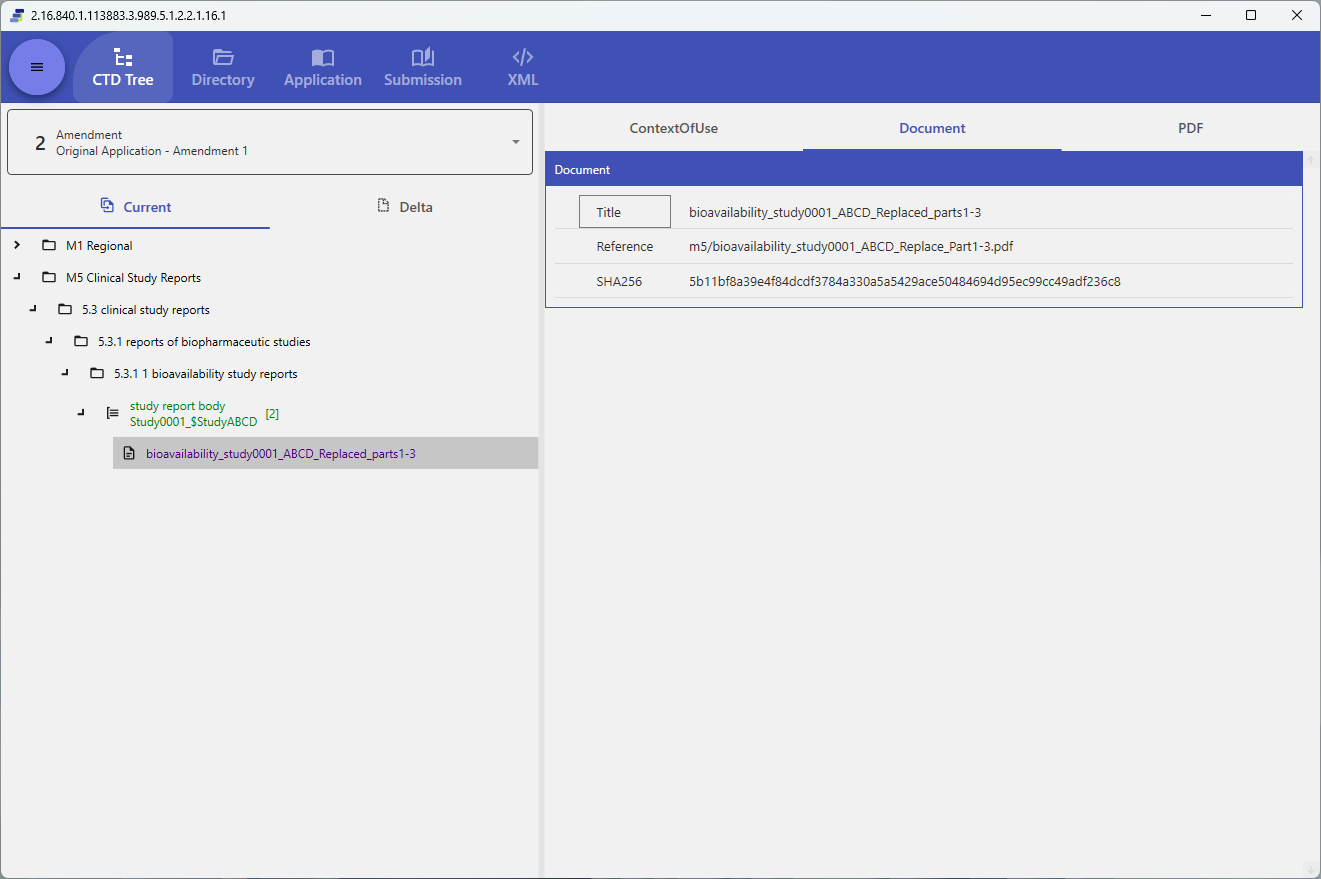
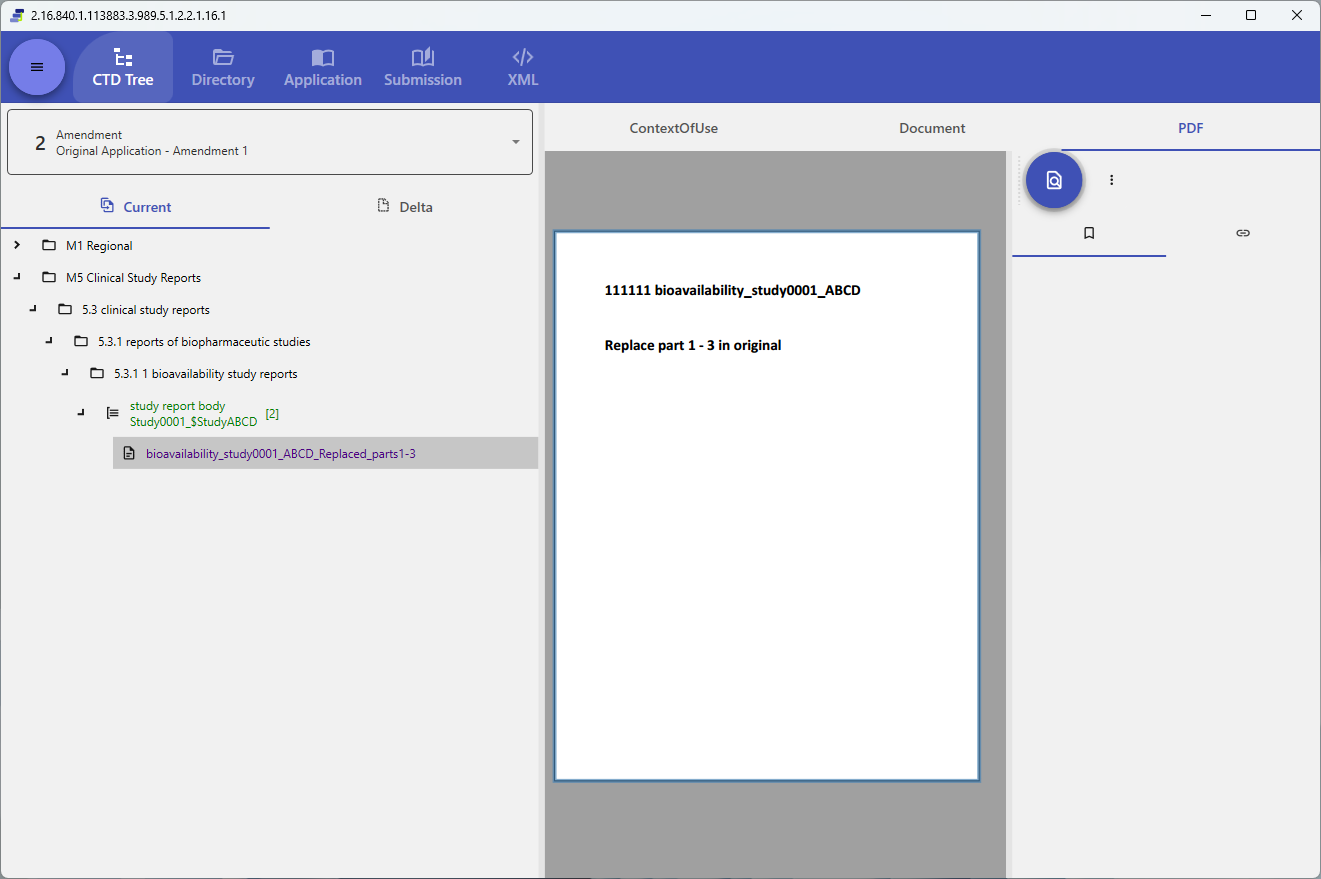
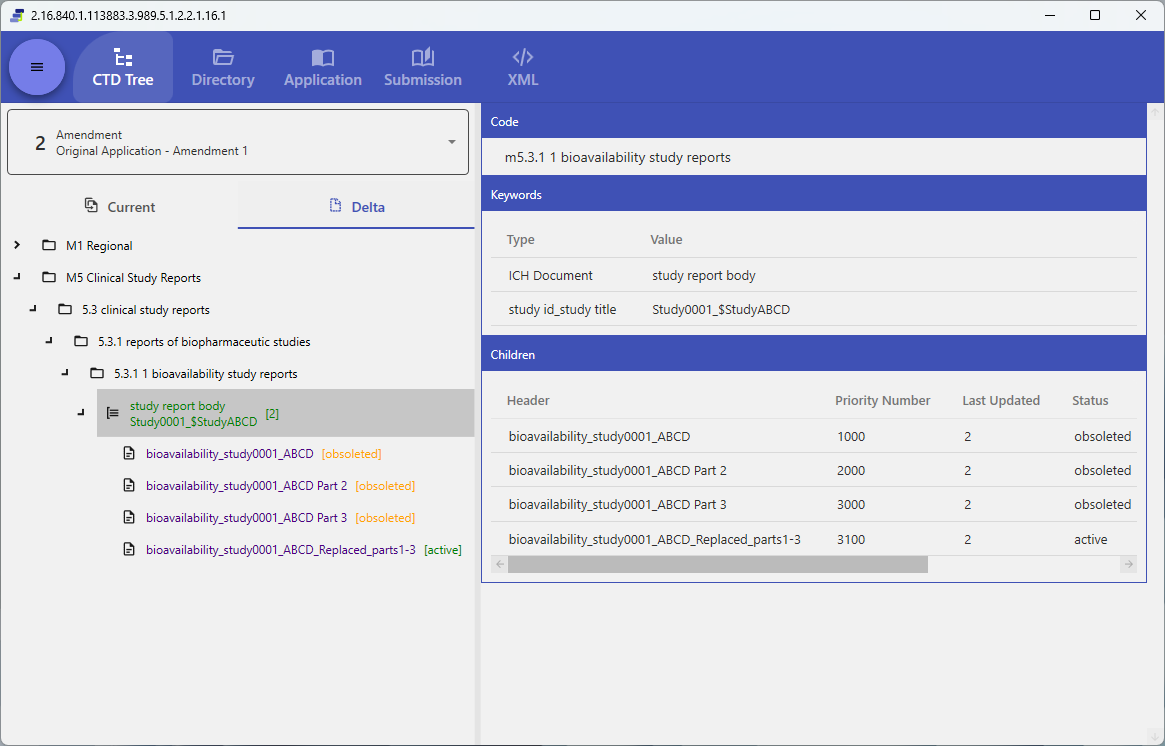
Tip: Depending on the standard and authority, additional information tabs such as differences between versions (Delta) and Context of Use are displayed.
3.3 Follow links / Helper Window
Purpose: Check the destination of a link within a document
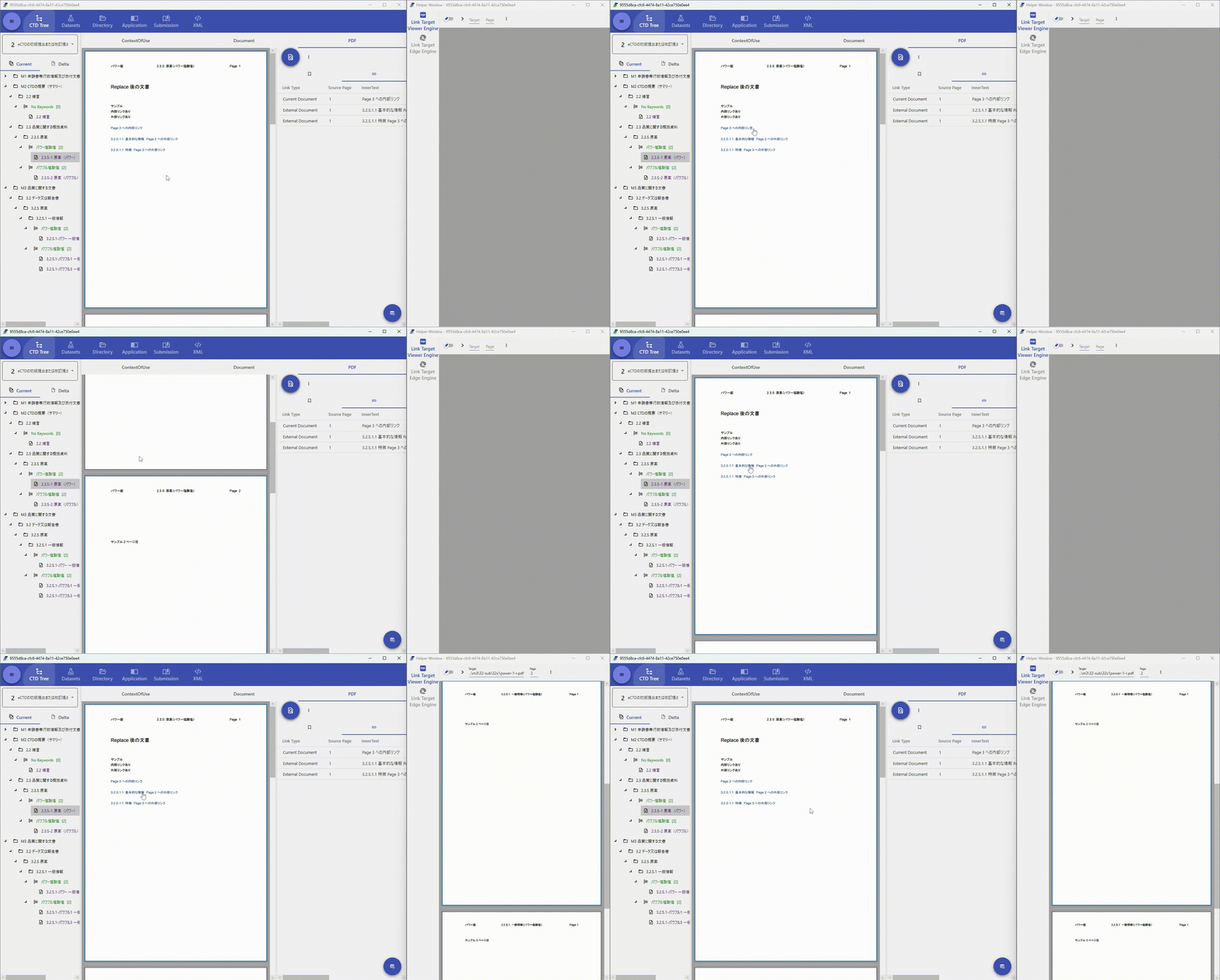
When you click a link inside a PDF, the link destination is shown in the Helper Window. You can place the body text (Main Window) and the link destination (Helper Window) side by side and read them while cross-referencing.
3.4 Directory view and file download
Purpose: Check the Directory structure and open folders/files in a browser or download them
Steps:
- Open the “Directory” tab
- Select a folder/file
- Open it in a browser, or download it
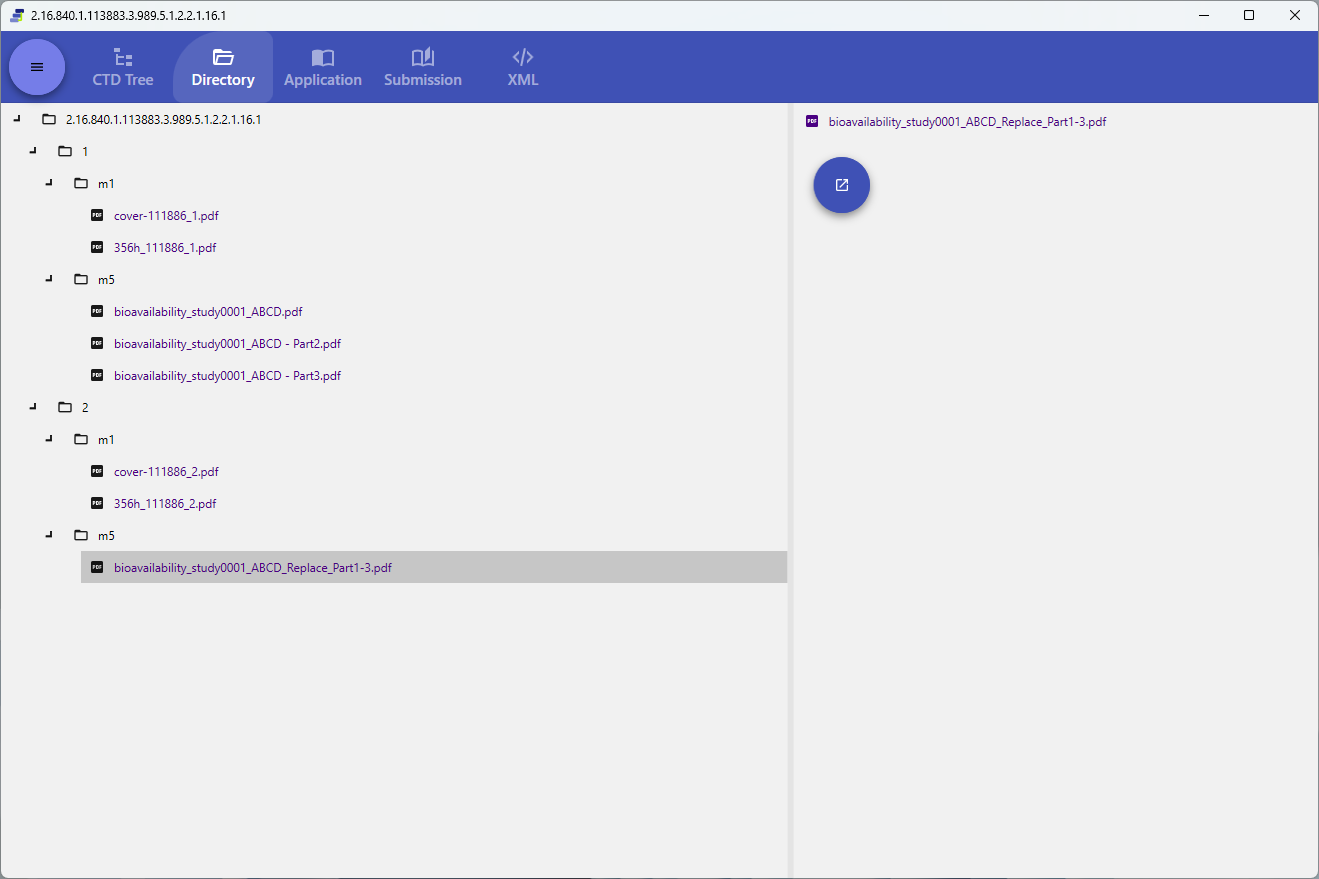
Depending on the type of eCTD Storage (where the data is stored), some operations (such as opening in a browser) may not be supported (6.4).
3.5 Other tabs (Application / Submission / XML / Datasets)
-
Application: Shows application-unit information (Information / Document tables / Context of Use / keyword definitions, etc.) in table form. The displayed items differ by standard and authority.
-
Submission: Shows submission-unit information (Information / Contacts, etc.) (eCTD v4.0 only).
-
XML: Shows
submissionunit.xmlas-is, without formatting.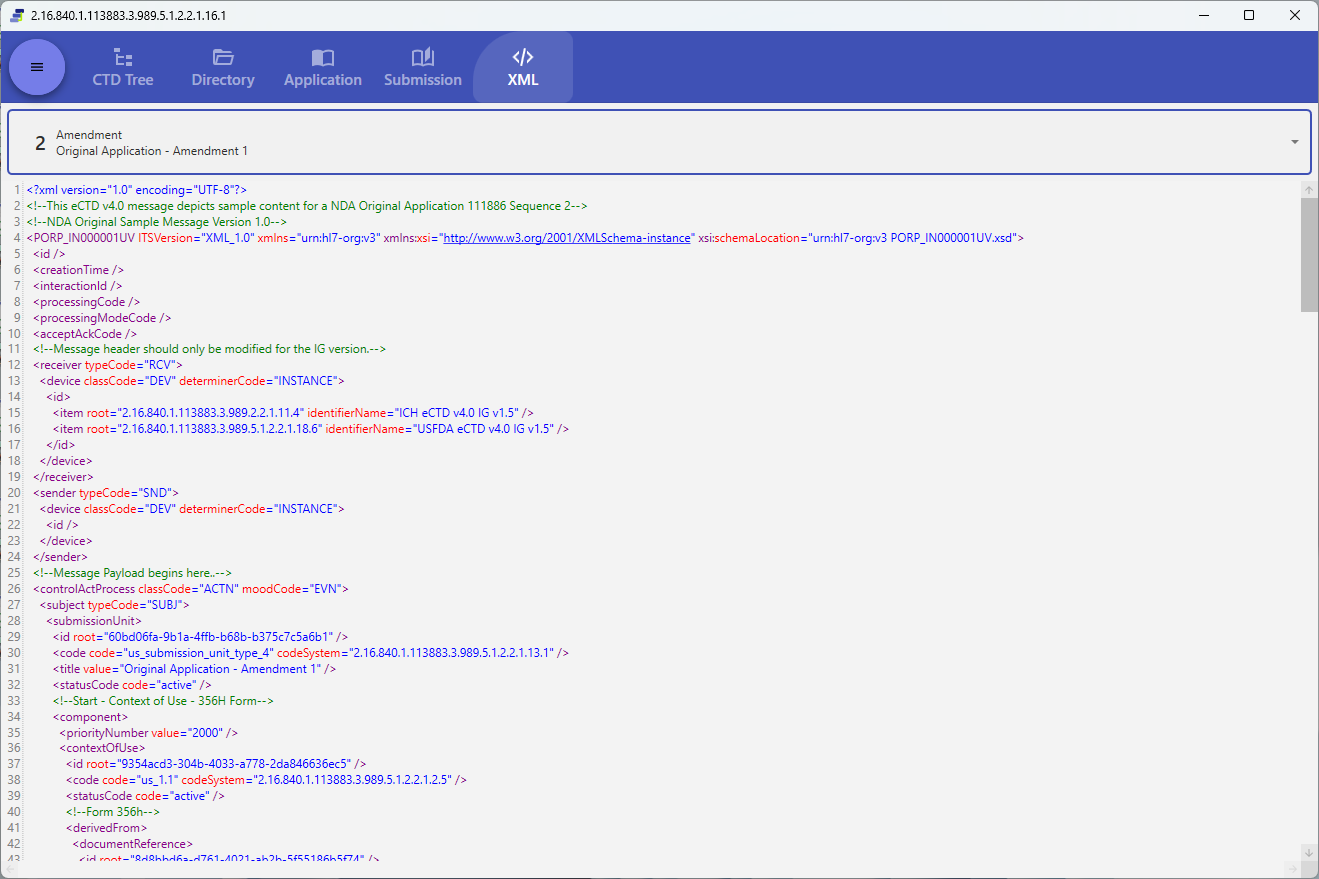
-
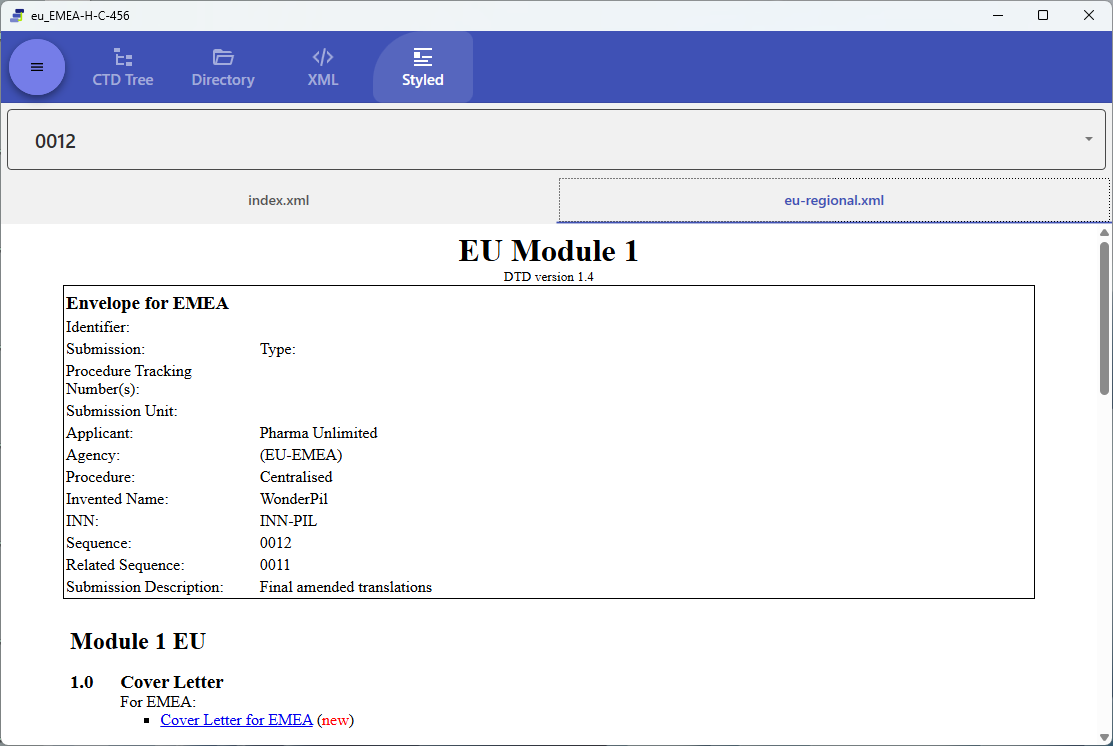
StyleSheet View: An HTML view formatted with the authority-provided XSL.
-
Datasets: Shows dataset information under
m5/datasets(v4.0 JP only).
3.6 Choosing the PDF viewer (Default and Edge)
Power Viewer lets you choose between two PDF rendering engines. Switch between them in Settings (4.2) according to your needs.
| Item | Default | Edge Engine |
|---|---|---|
| Internal links (within a document) | Supported | Supported |
| External links (links to other leaves) | Shown in Helper Window | Follows browser / internal handling |
| Text selection & rendering | Built-in engine | Chromium-based |
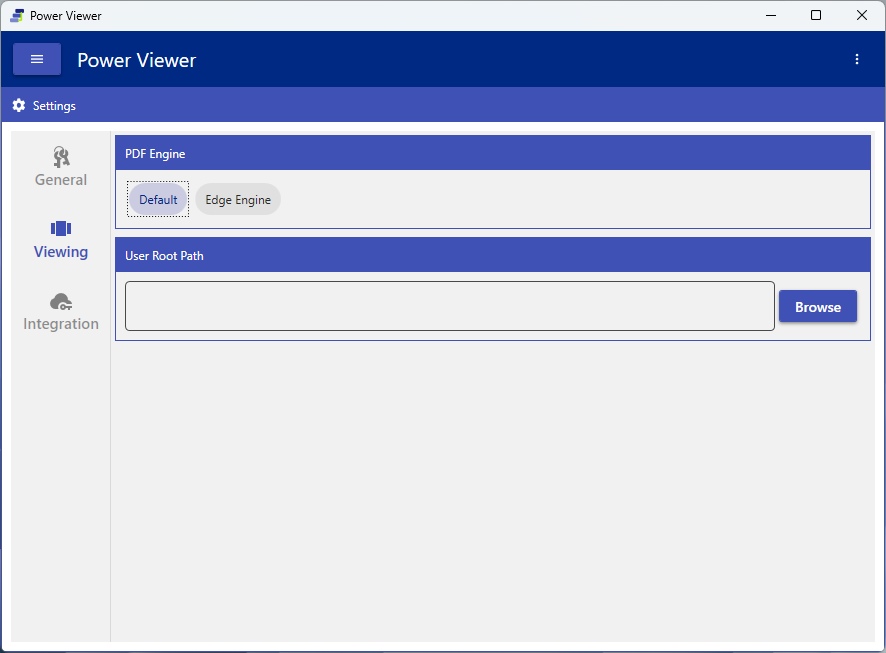
If the PDF viewer type is enforced by group policy, this setting cannot be changed (7.3).
3.7 Differences between v3.2.2 and v4.0
For common operations, see 3.1–3.6. Only the main differences are shown here.
- Tab structure: v4.0 consists of Application / Submission / CTD Tree / Directory, and others. v3.2.2 has no Submission tab and instead provides information such as Reference (cross-references).
- Identifiers: v4.0 uses the UUID format, while v3.2.2 uses the traditional Application ID format.
- Authority support: v4.0 supports JP / US / EU and others; v3.2.2 supports JP and other authorities (Thailand, Korea, South Africa, Australia, etc.).
4. Personal settings (Current User) 📖
4.1 Account information (MyAccount)
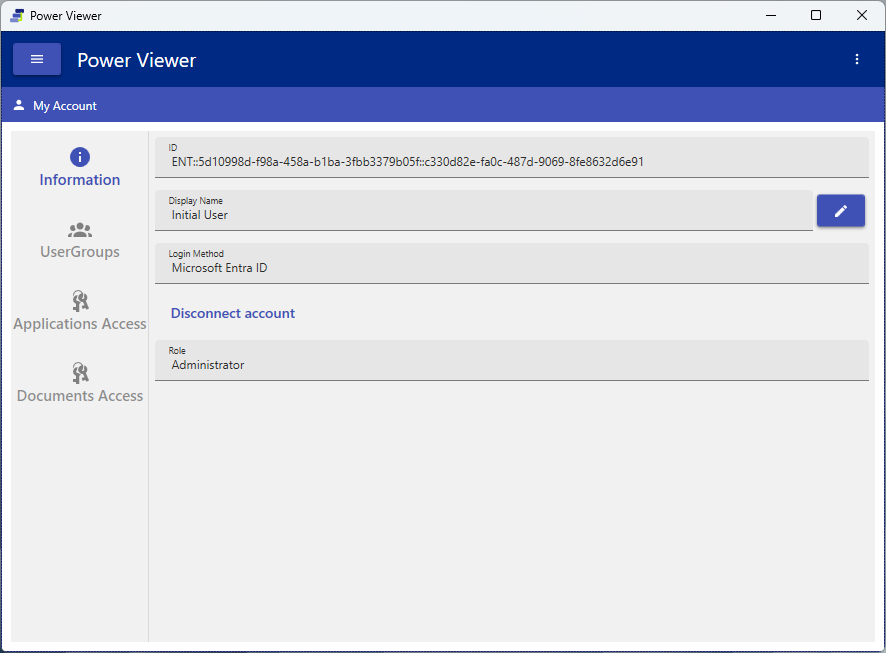
Purpose: Check your user information, the UserGroups you belong to, and the Access Keys you inherit. Change your password and DisplayName
Steps:
- Open “MyAccount” from the left menu
- Change your DisplayName or password in the Information tab
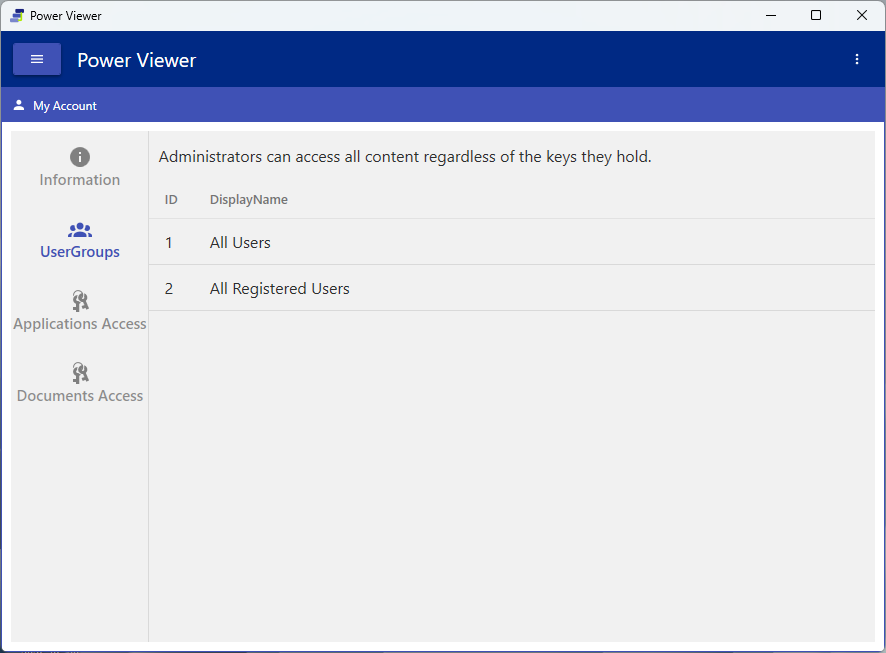
- In the UserGroups / Applications Access / Documents Access tabs, check the permissions granted to you
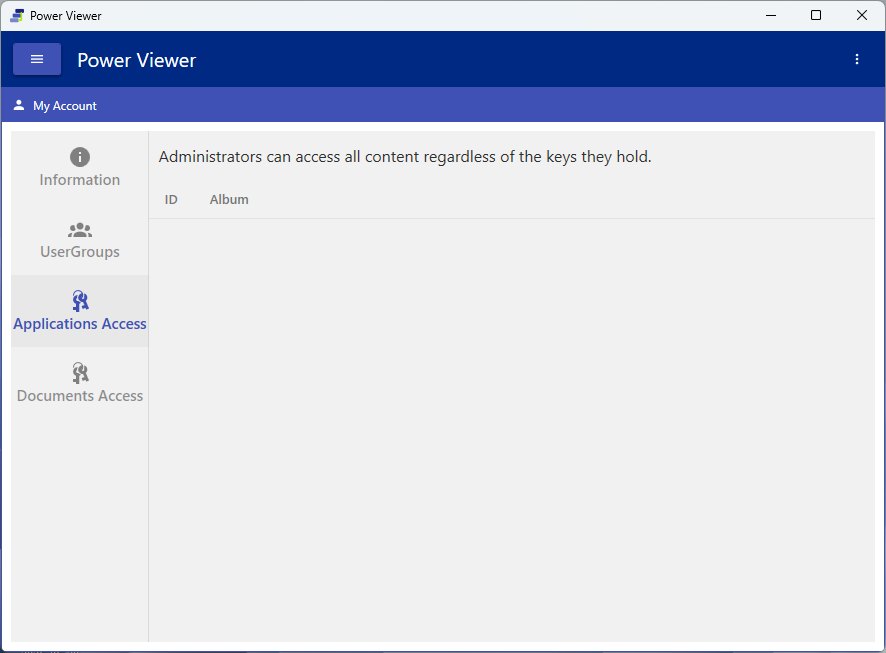
You cannot change your own role (Viewer / Admin, etc.) here. Role changes are made by an Administrator (6.5).
4.2 Settings
Purpose: Change personal settings such as display language, PDF viewer, and paths
Main setting items:
- Language: The display language for the manual and UI
- PDF Viewer: The PDF rendering engine (Default / Edge; see 3.6)
- User Root Path: The root folder used as the basis for resolving relative paths
- Cloud storage integration / Refresh Token: Deleting authentication information (Refresh Token)
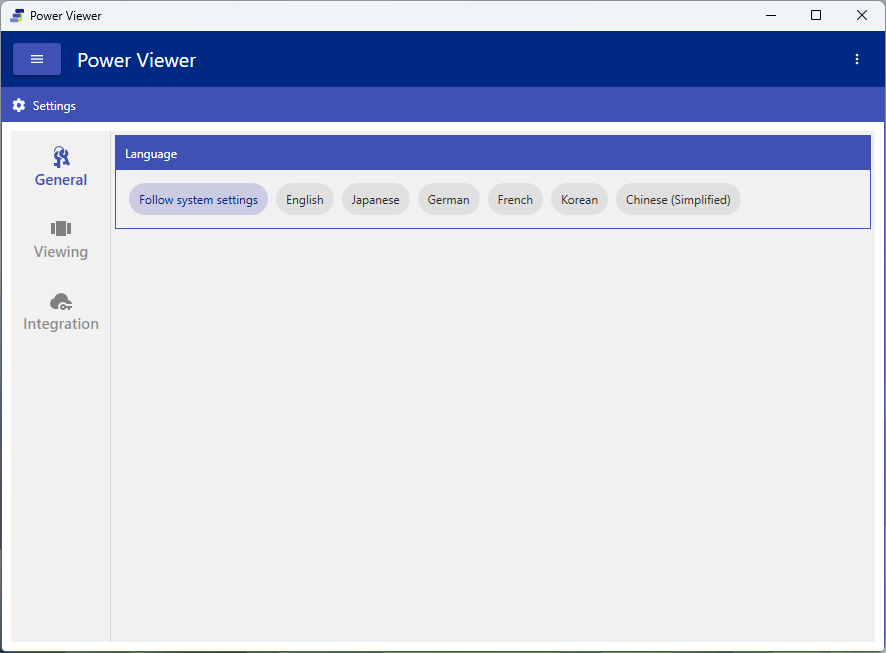
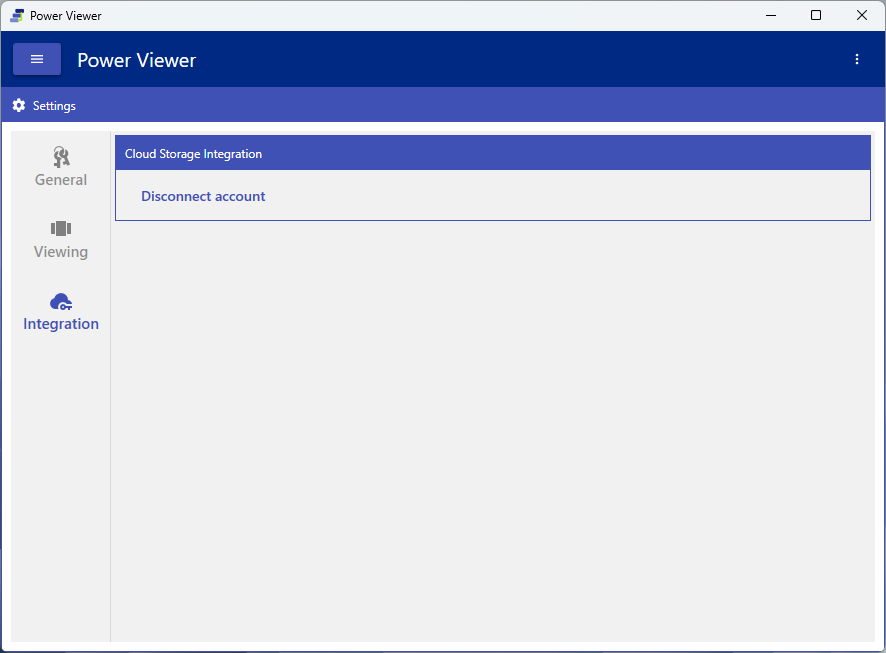
If the User Root Path or PDF viewer is enforced organization-wide by group policy, it cannot be changed (7.3).
4.3 CV List
Purpose: Manage CVs
In the CV List tab, you can list, add, and remove CV files. Whether it appears depends on the group policy setting (the CV List tab display option); if it is set to hidden, the tab itself does not appear.
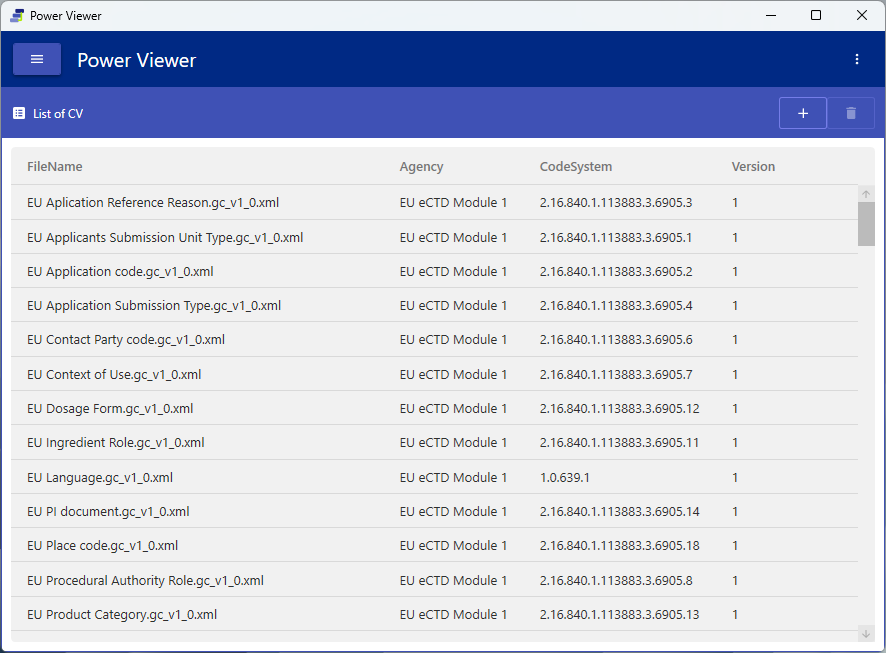
The CV download method (server sync / local) is determined by the functional options in the group policy (7.3).
5. Deployment and setup ⚙️
5.1 Overview of deployment
Deployment by an administrator generally proceeds in the following flow.
flowchart TD
    A["1. Obtain a license key"] --> B["2. Create an album database"]
    B --> C["3. Create and distribute a group policy file"]
    C --> D["4. Employees each log in and start operating"]
    D --> E["5. Administrator manages access rights"]
5.2 Check the information required to issue a license key
Purpose: Check the information required to issue a license key
Steps:
- Open the environment setup Window
- Run the system environment survey (Entra login is optional; you can cancel if not needed)
- Perform a connection test
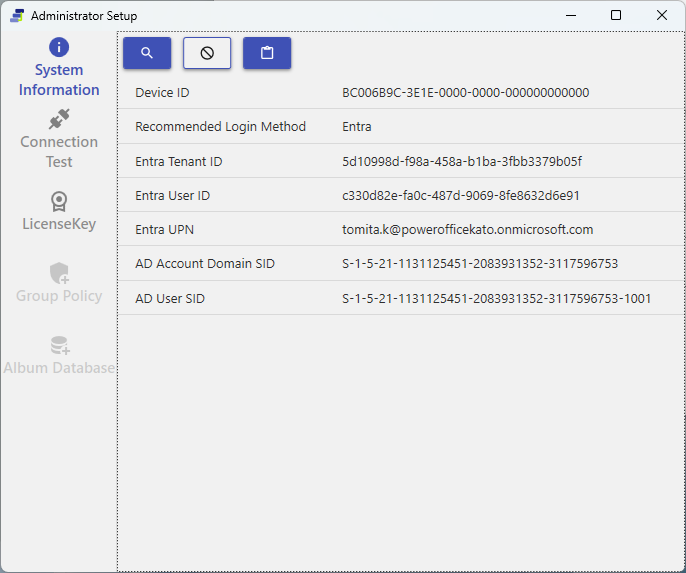
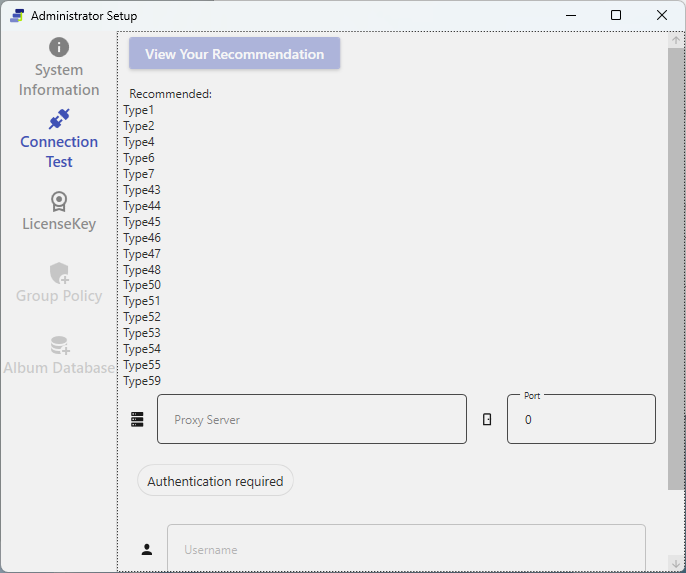
If the connection test results in an error, check your network / proxy settings (7.4).
5.3 Create an album database
Purpose: Create the database that is the center of eCTD management
Prerequisites: A valid license key has been entered
Steps:
- Specify the destination folder for creating the album database
- Configure the login method
- Run the creation
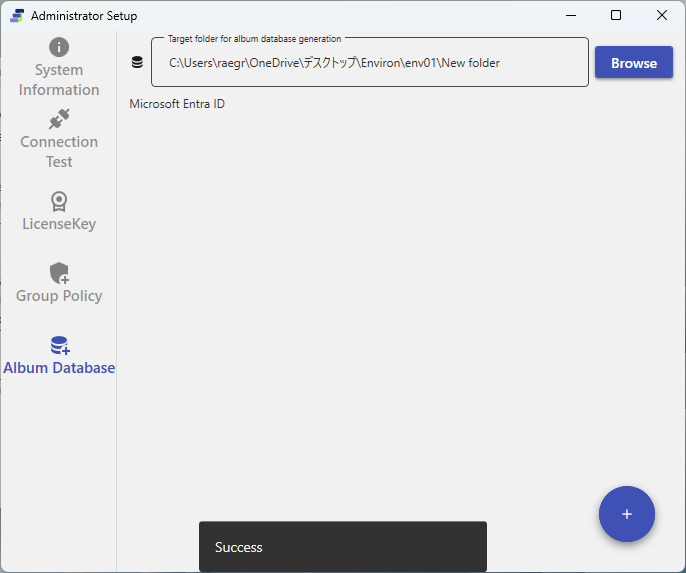
Verify: The database is created, and the user who ran the creation is registered with the Administrator role
5.4 Create and distribute a group policy file
Purpose: Create a file that bundles company-specific settings and distribute it to employees
Steps:
- Create it by specifying the album database path and name, and the HTTP connection settings
- Inform employees of the path to the created file (employees set this path at their first login)
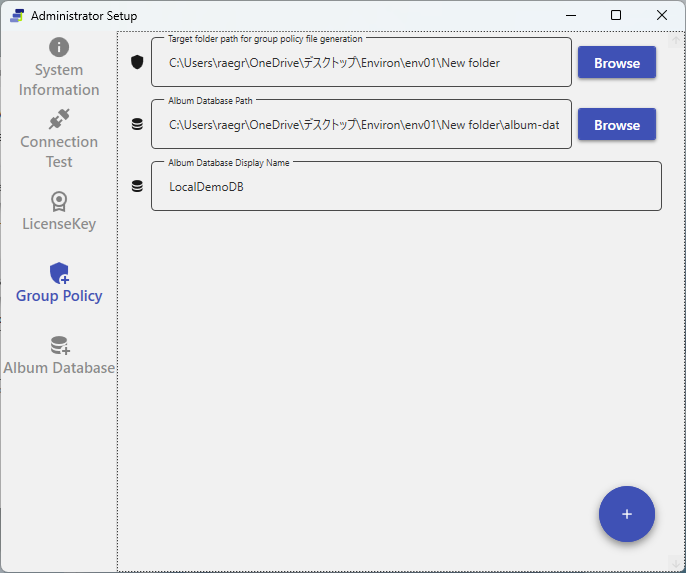
The group policy file is essential for operation in a local environment. We recommend placing it on a shared server (sync/distribution operation is also possible). See 8.2 for details.
5.5 Choose a login method (Entra / AD / Cred)
Paid login using a license key has three authentication methods. The method is tied to the license key and operated via group policy.
| Method | Overview | Notes |
|---|---|---|
| Entra (recommended) | SSO via Entra ID (Azure AD) | Centrally managed by organization policy |
| AD | On-premises Active Directory | For in-house domain environments |
| Cred | ID / password | A method for when the above cannot be used |
For individual use without a license key, a separate free login (Microsoft / Google / email OTP) is available.
5.6 About license keys
A license key is a signed key that includes the permitted company key, authentication method (Entra / AD / Cred), expiration date, and more.
- A key can be recorded in a group policy, and employees can use the key recorded in the group policy specified by path (7.2).
- Keys that are expired, have an invalid signature, or are for an unsupported version are treated as invalid.
- Keys with a product name other than
PowerViewerare not accepted.
The CV retrieval method (server sync / local) is controlled not by the “license plan” but by a functional option in the group policy (the ServerCV download option) (7.3).
6. Operate the album database ⚙️ 💎
6.1 Understand the data model
The album database is composed of the relationships among Album / Application / SubmissionUnit / Access Key. Adding a SubmissionUnit automatically generates the corresponding Application.
- Album
- Application — auto-generated when a SubmissionUnit is added
- SubmissionUnit — points to an actual eCTD (Sequence Folder). Multiple Folder Paths can be registered with a Priority
- Application — auto-generated when a SubmissionUnit is added
- Access Key
- Application Access Key … one per Album, auto-generated (6.4)
- Document Access Key … multiple, self-creatable (Allow/Deny, Deny takes precedence)
6.2 Register an eCTD (add a SubmissionUnit)
Purpose: Register a new eCTD in the album database
Steps:
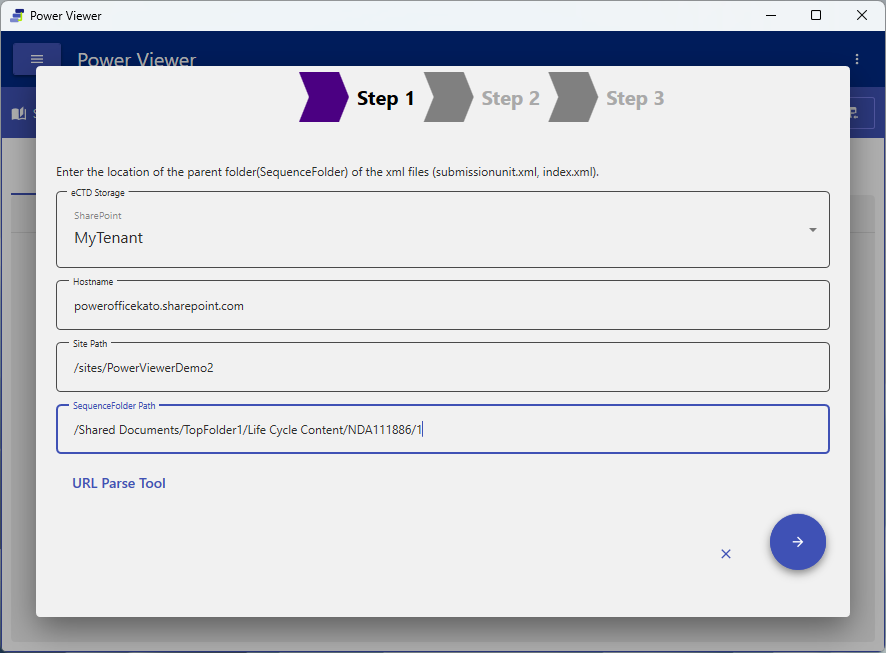
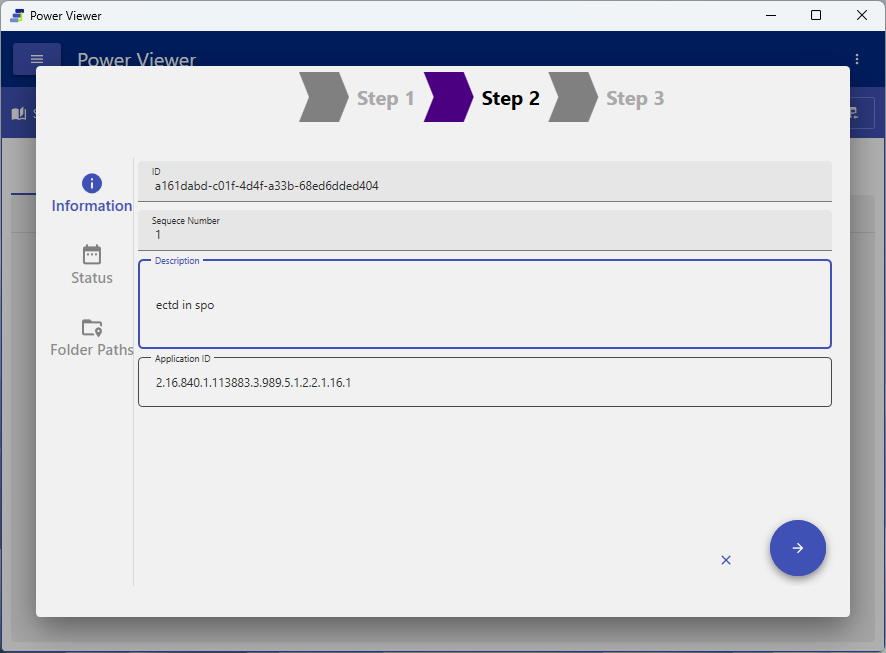
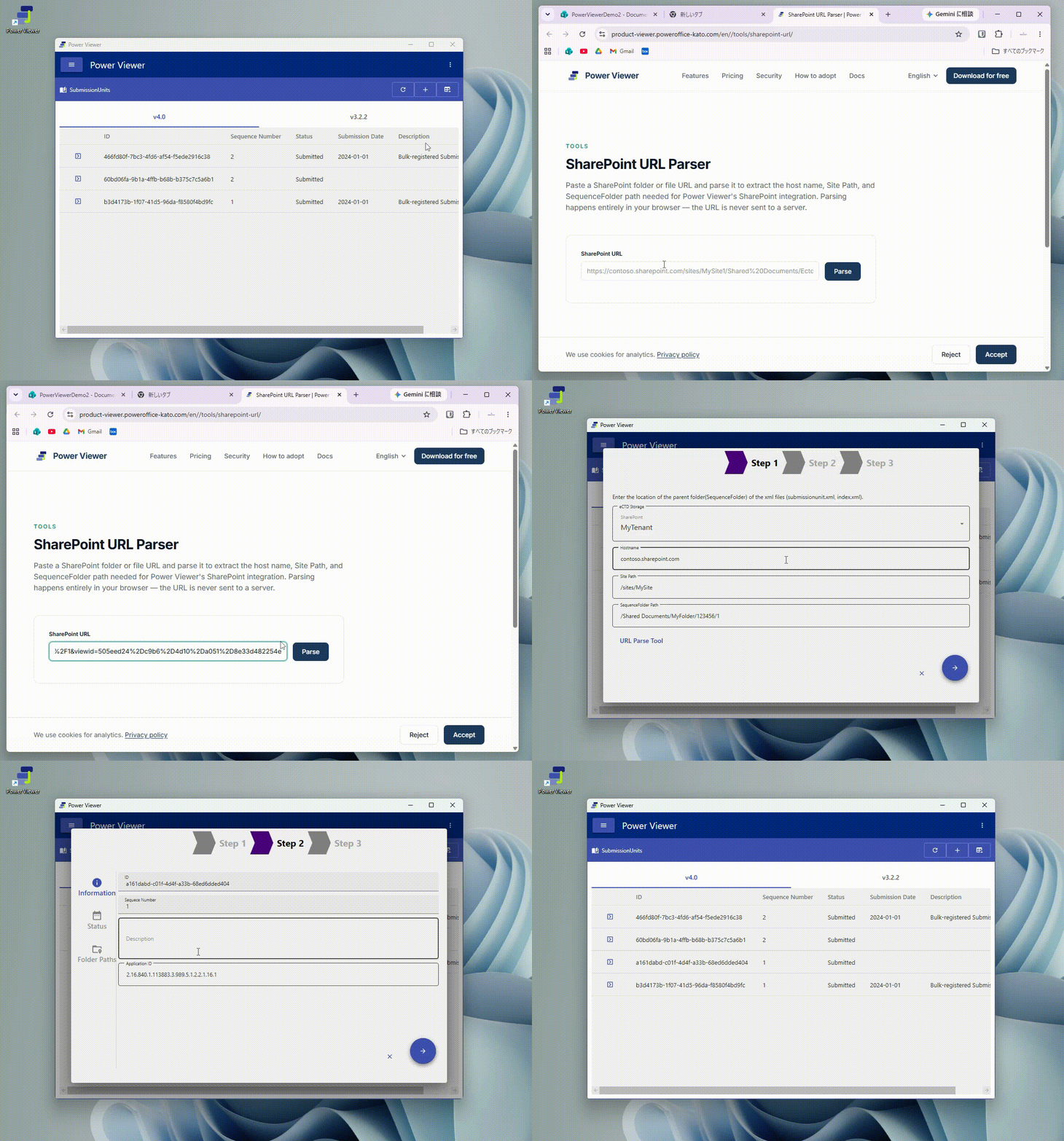
- On the SubmissionUnits screen, open the add wizard
- Specify the Sequence Folder path or folder ID (the required folder identifier differs depending on the type of eCTD Storage)
- Edit the SubmissionUnit information
- Run the registration
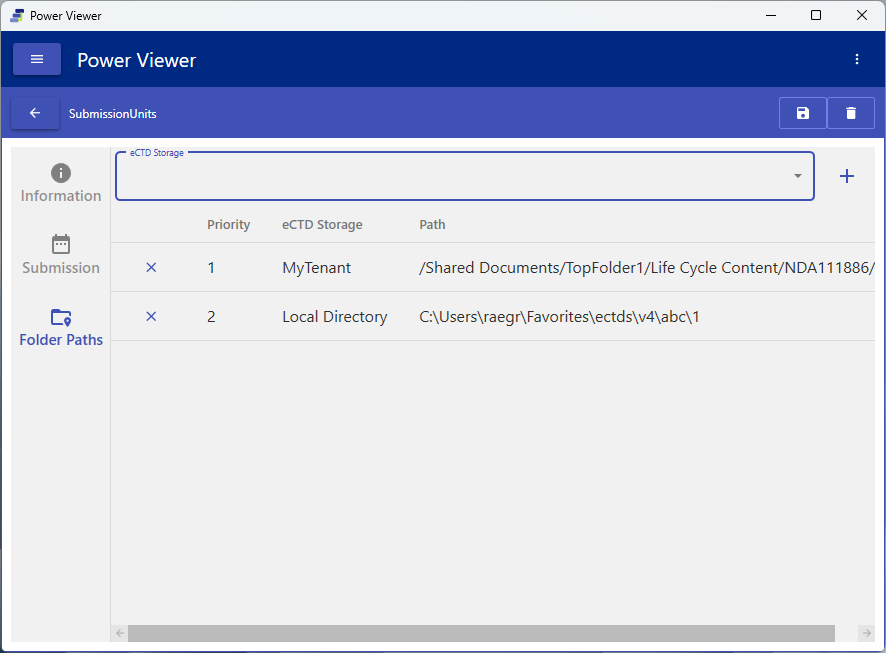
Tip: You can register multiple Folder Paths with a Priority for a single SubmissionUnit.
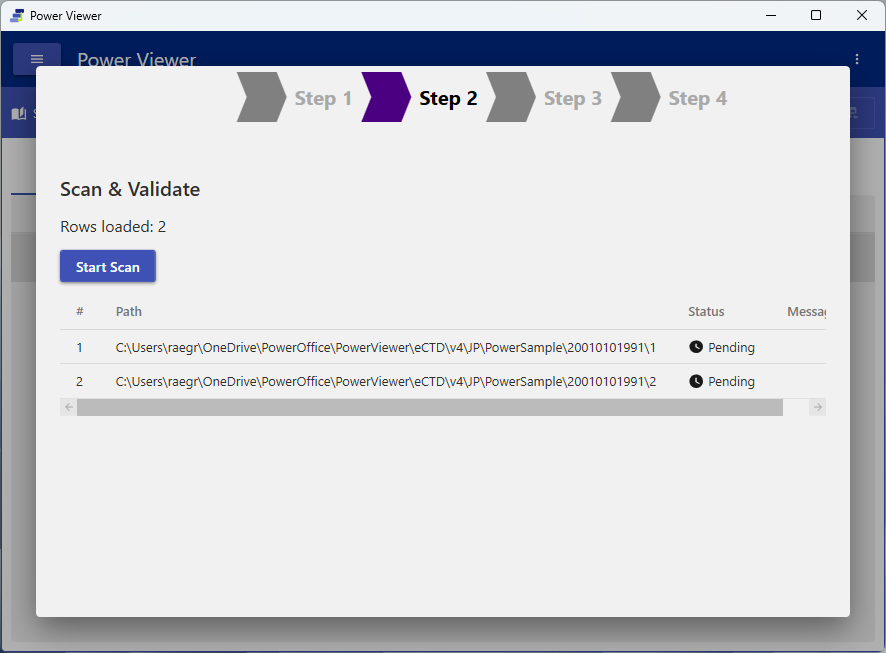
Bulk registration: Multiple SubmissionUnits can be bulk-imported via CSV (a 3-step process: scan → confirm → result).
6.3 Organize Applications
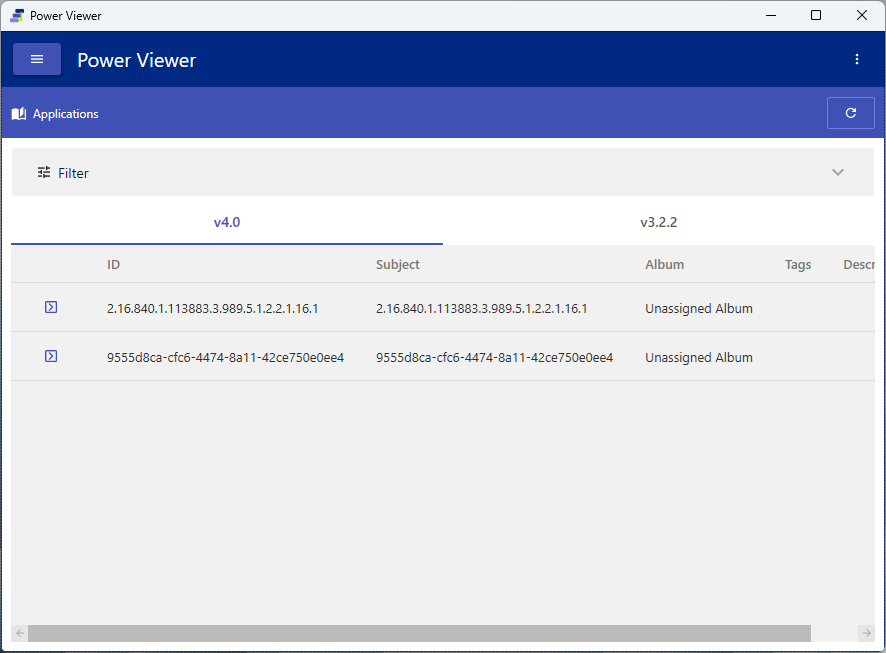
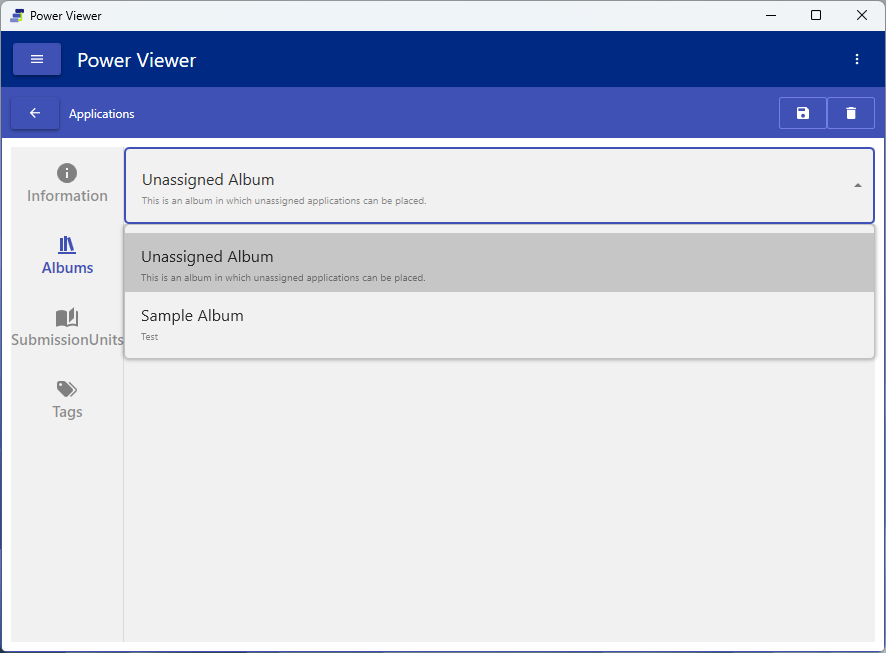
Purpose: Link Applications to Albums and apply Tags
Steps:
- On the Applications screen, select the target Application
- Edit the basic information, the Album it belongs to, and its Tags
- Save
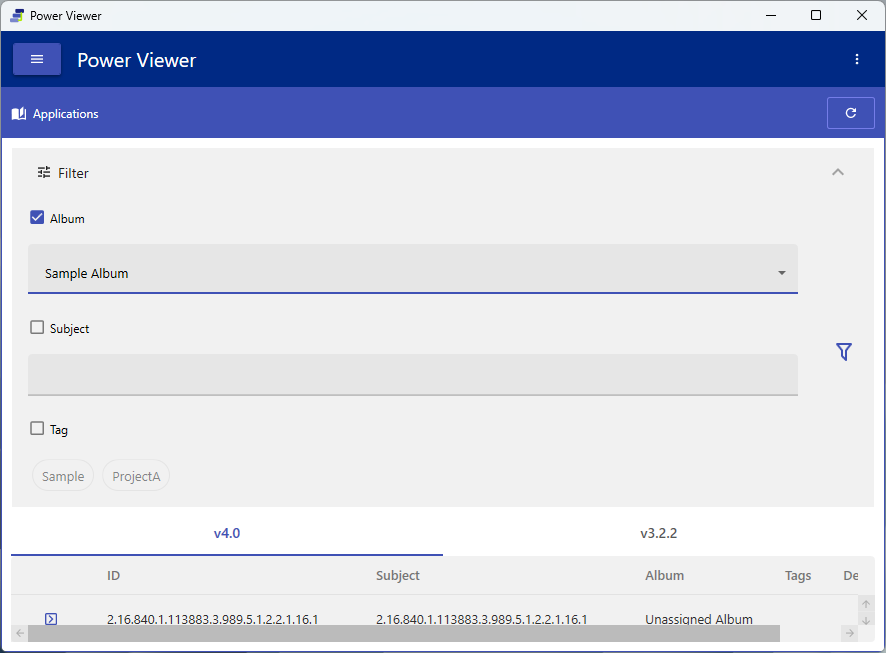
Tip: The list can be filtered by Tags and other criteria using the filter panel.
6.4 Design access rights
Purpose: Design whether access is allowed at the Application / Document level
Access rights are designed with two types of Access Key.
- Application Access Key: A key auto-generated one per Album. Its type is View only. It makes all Applications in the corresponding Album viewable.
- Document Access Key: A key used for fine-grained control at the document level. It has Allow / Deny, and Deny takes precedence (multiple can be specified).
Document Access Key Types (8 total):
| Type | Control target | Setting value (ControlValue) |
|---|---|---|
| All | All files | Not required |
| PathContains | Files whose path contains a specified string (custom) | String (multiple allowed) |
| SHA256 | Specific files matching a SHA256 (custom) | Hash value (multiple allowed) |
| MD5 | Specific files matching an MD5 (custom) | Hash value (multiple allowed) |
| Extension | Files with a specific extension (custom) | Extension (e.g. .pdf, multiple allowed) |
| M5ExceptedDatasets | M5 excluding Datasets (for JP) | Not required |
| STDM | STDM within M5 only | Not required |
| ADaM | ADaM within M5 only | Not required |
| Download | Download permission (Allow only) | Not required |
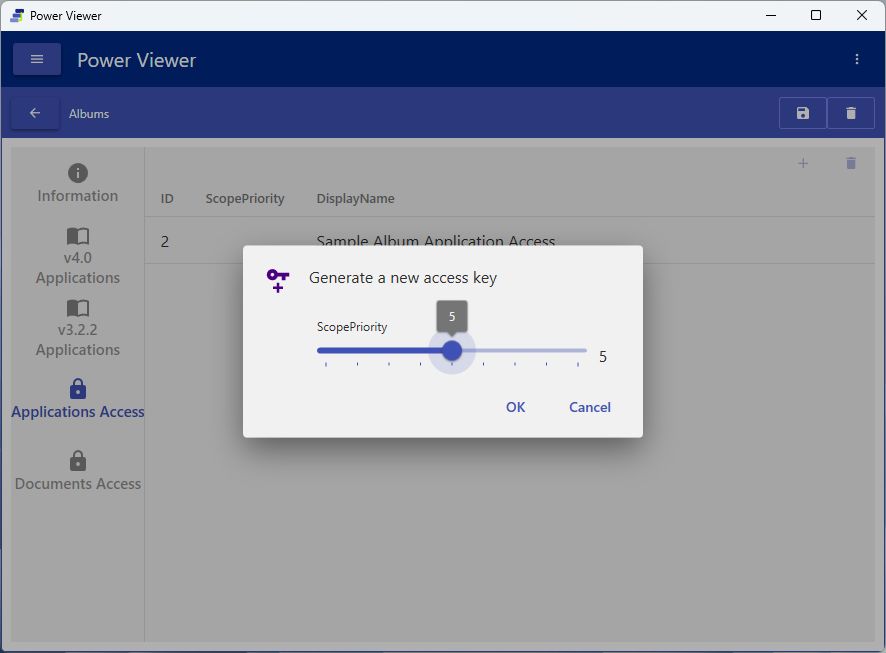
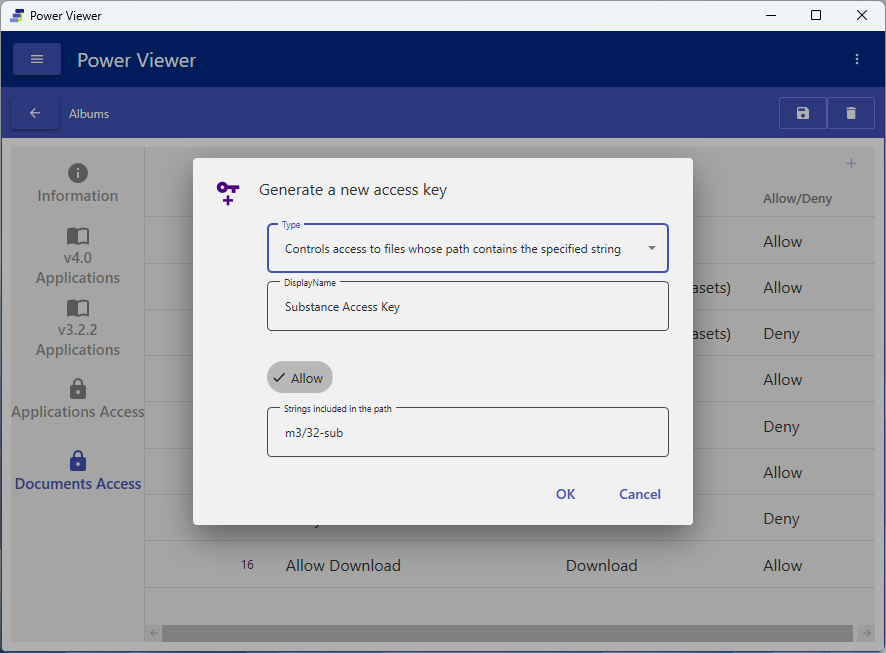
The four types you can create as custom are PathContains / SHA256 / MD5 / Extension. The others are system-defined and cannot be edited. For the concepts in detail, see 8.1.
6.5 Manage users and groups
Purpose: Change user roles, organize groups, and grant Access Keys
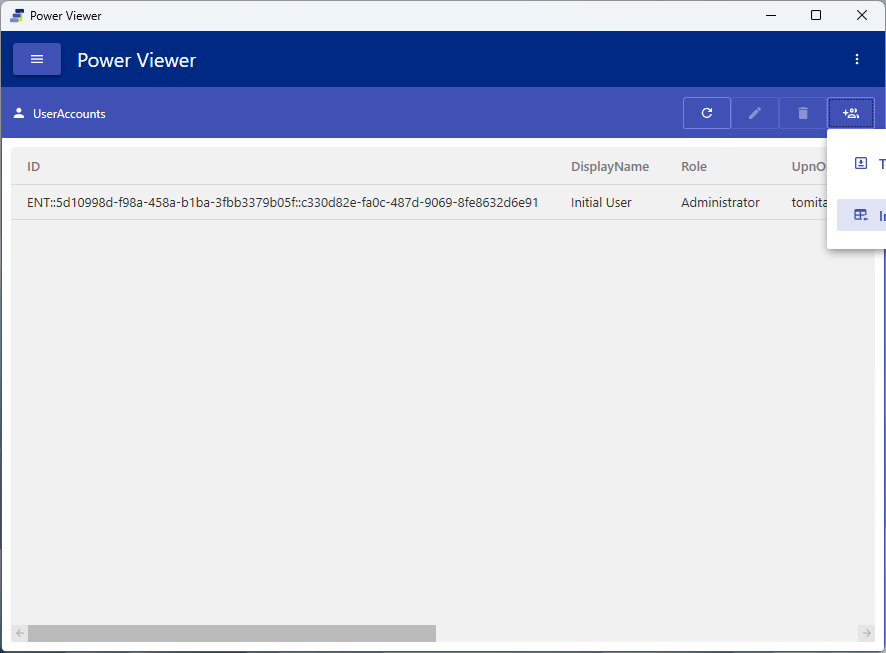
Steps (UserAccounts):
- Open the UserAccounts screen (users are automatically created as Guest at their first login)
- Change the target user’s role (Guest → Viewer / Admin / GroupPolicyEditor)
- Bulk-register via CSV as needed
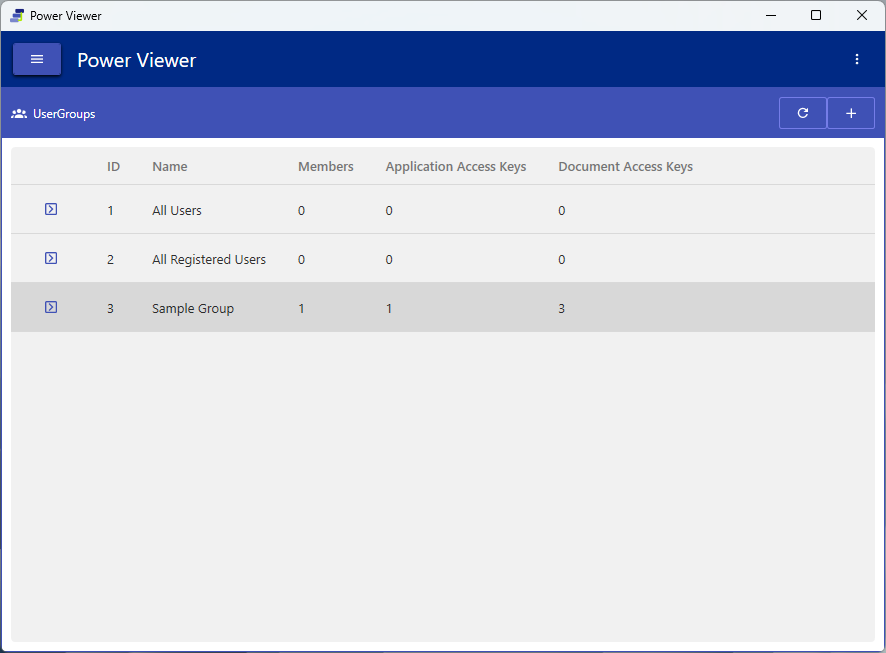
Steps (UserGroups):
- Create/edit a group on the UserGroups screen
- Assign members, Application Access Keys, and Document Access Keys
- Confirm with the save button
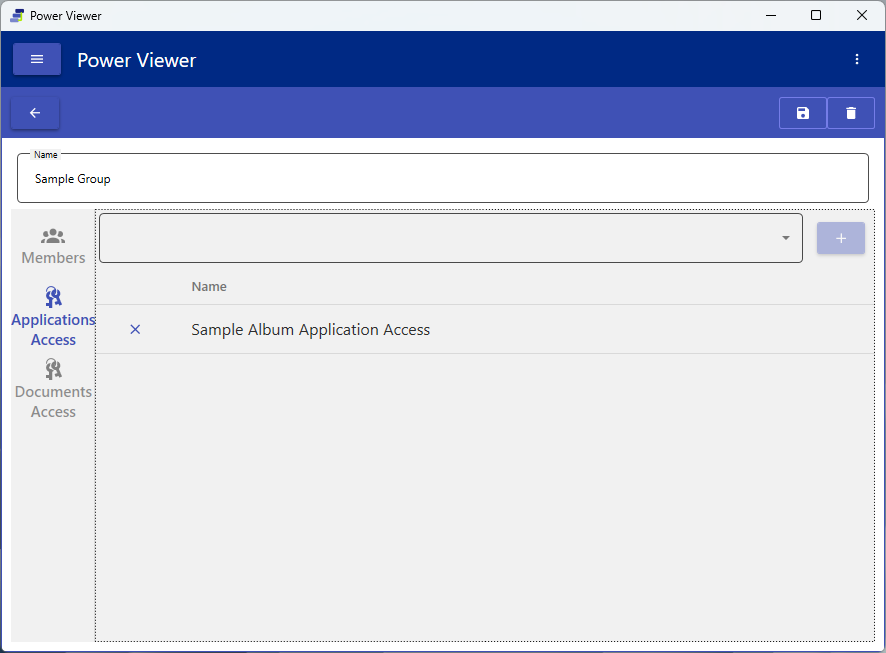
You cannot change your own role. For the relationships among roles, groups, and keys, see 8.1.
6.6 Integrate cloud storage
Purpose: Register the cloud storage that serves as the destination for SubmissionUnits
On the eCTD Storages screen, register the available storage destinations. The currently available providers are as follows.
| Provider | Authentication method |
|---|---|
| Local Directory | Local / network folder |
| SharePoint (Custom) | OAuth2 |
| Box (Custom / Hosted) | OAuth2 |
| Google Drive (Custom / Hosted) | OAuth2 |
| Veeva Vault (BETA) | OAuth2 |
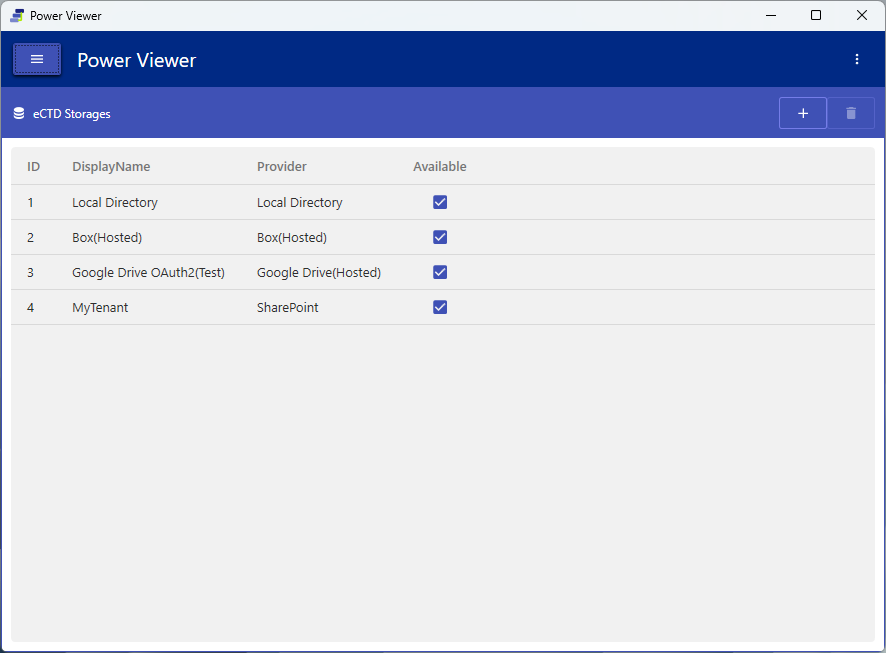
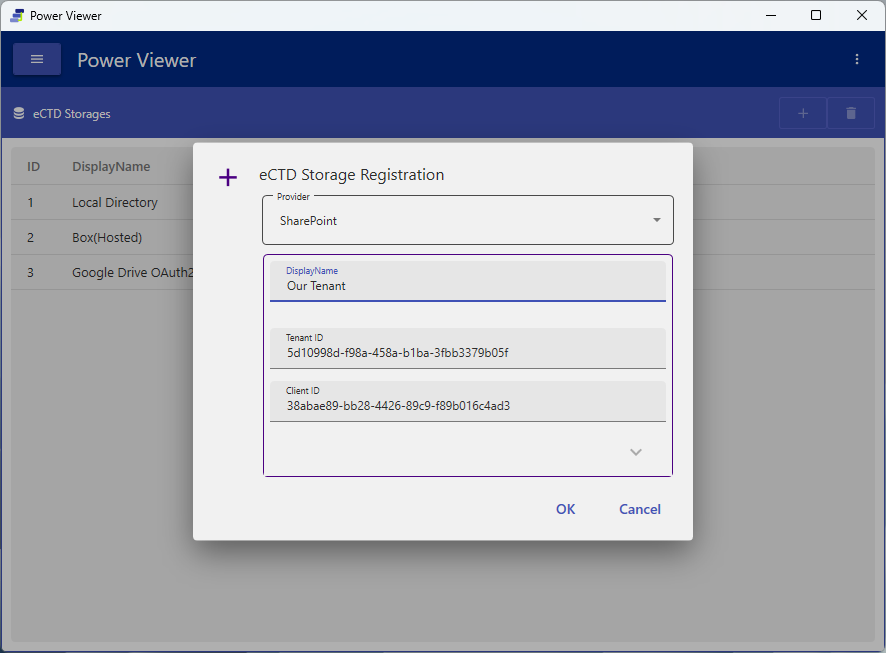
Registering a cloud provider may require OAuth app configuration (client ID, etc.) in that vendor’s admin console. Storage that is referenced by a SubmissionUnit is locked and cannot be deleted.
6.7 Check audit logs
On the Logs screen, changes to the DB, logins, and more are recorded. Logs can be archived (compressed) and removed from the DB, but the compressed record itself is retained.
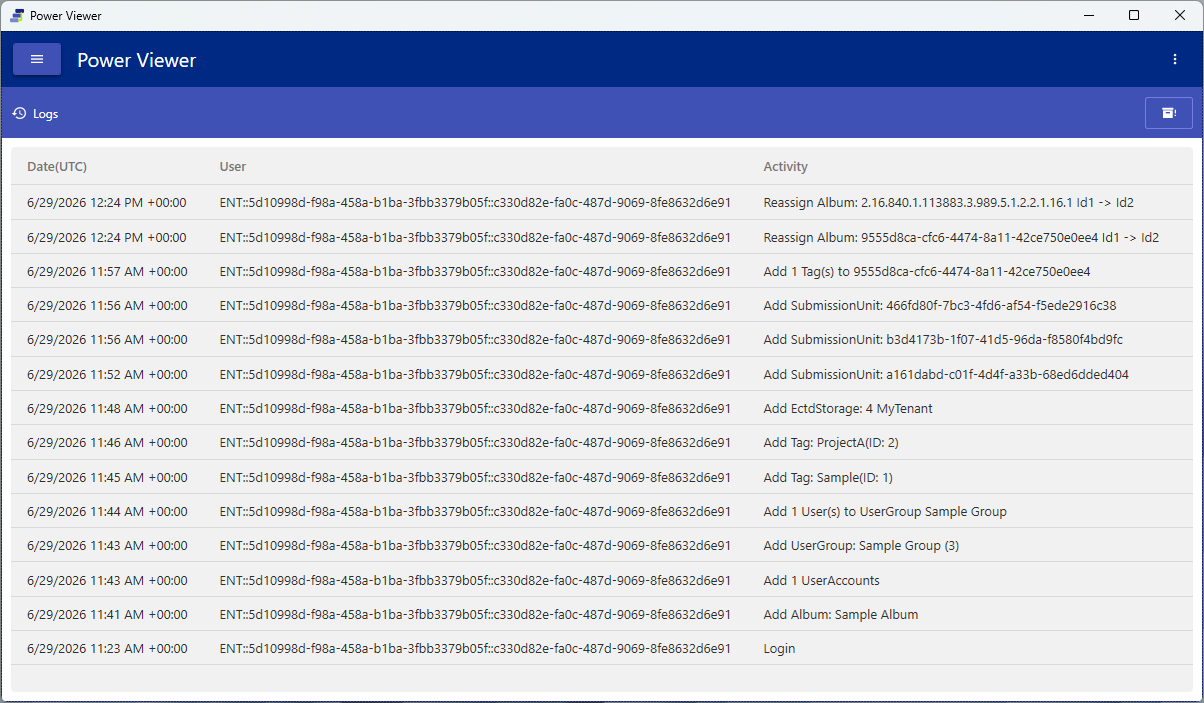
Archiving (compressing/removing) cannot be undone. Check the target range before running it.
6.8 Other data views (Documents / Tags)
-
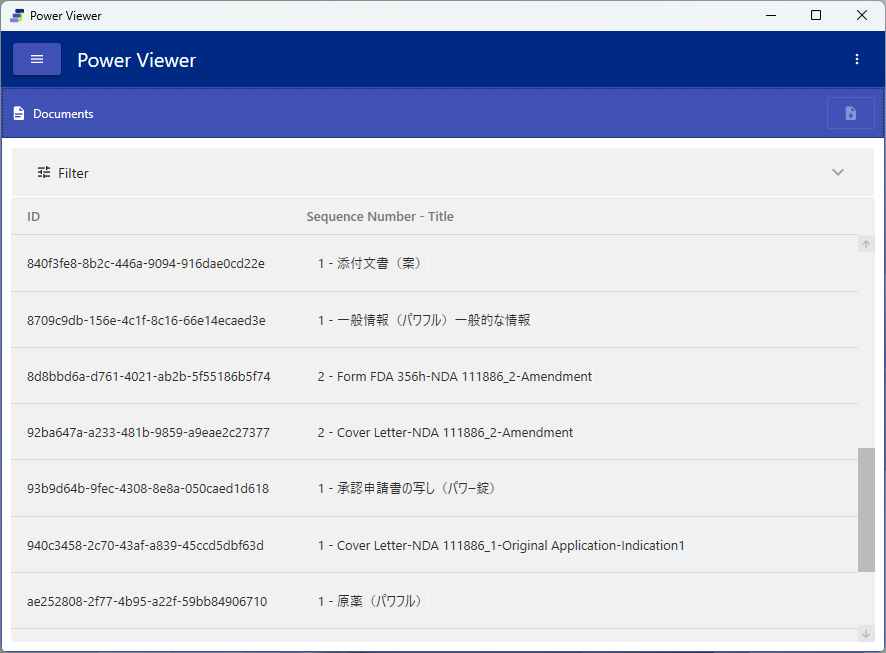
Documents: The load button displays a list of registered documents.
-
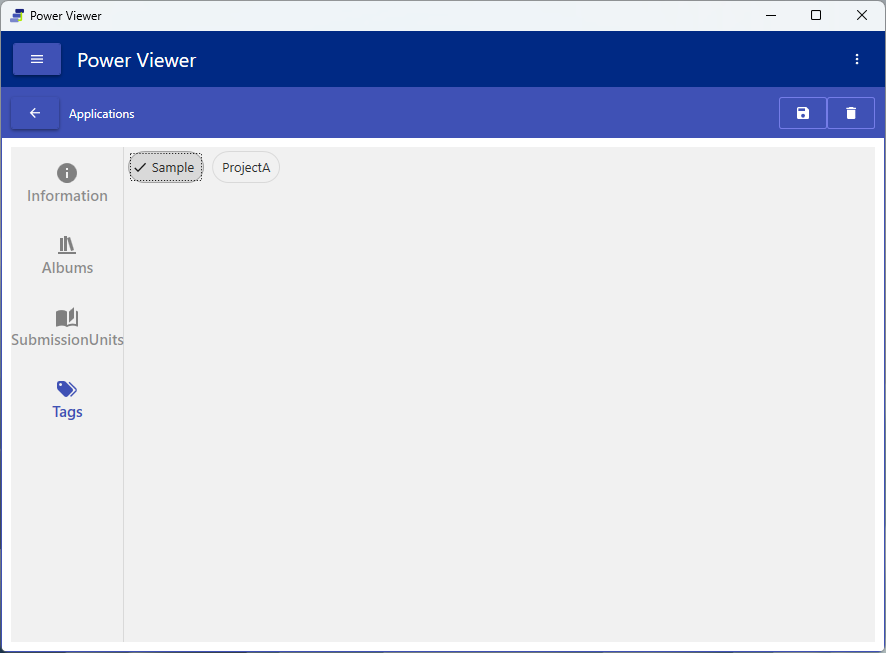
Tags: Add and remove Tags used for classifying Applications.
7. Configure group policy ⚙️
Editing group policy can be done with the Administrator or GroupPolicyEditor role.
7.1 Album database settings (multiple registrations)
You can register multiple album database settings in a single group policy. When multiple are registered, users select the connection target at login.
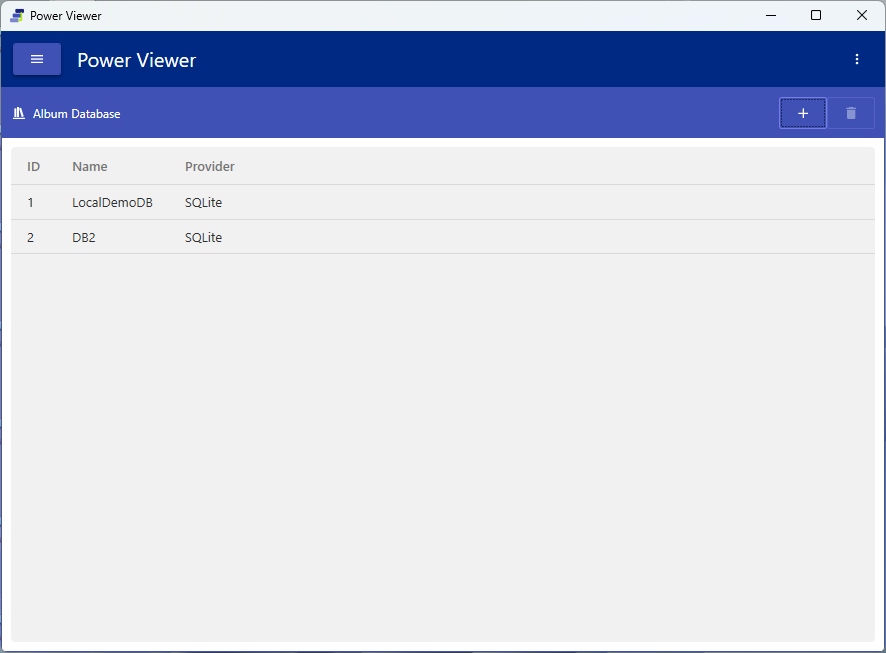
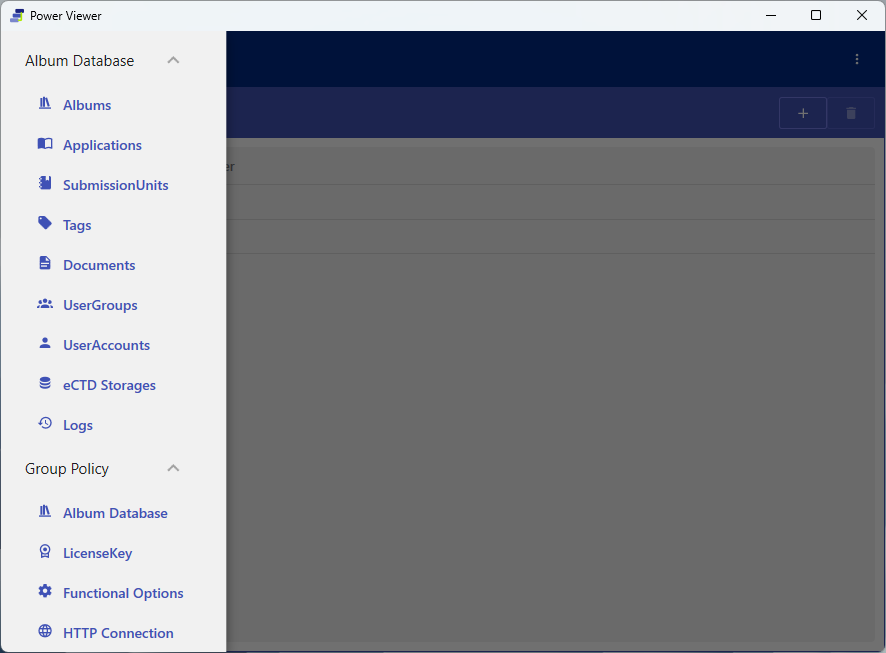
Switch between the group policy screens using the hamburger menu in the upper left.
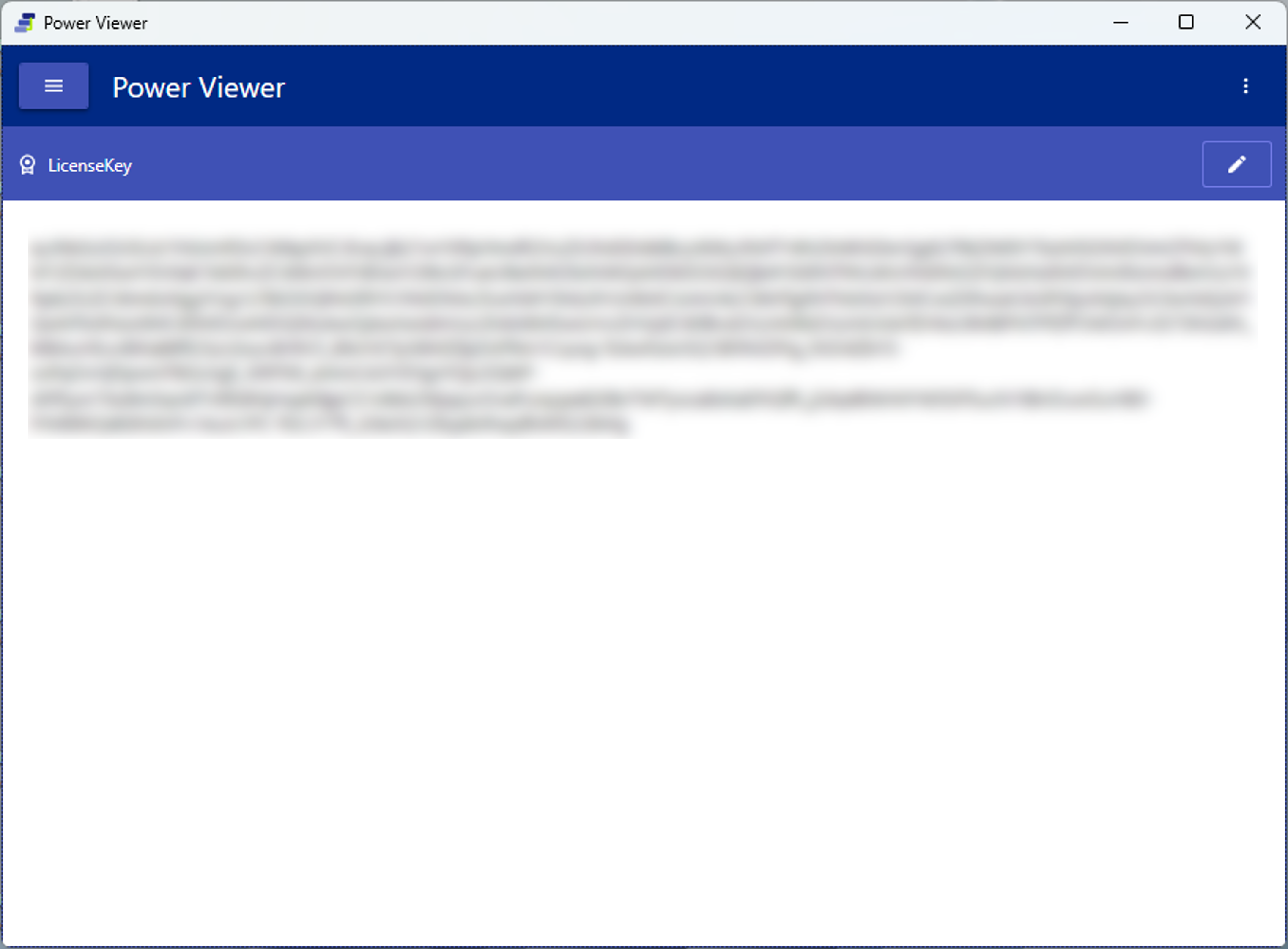
7.2 Embedding a license key
If you save a license key in the group policy, users no longer need to enter a key at login.
7.3 Functional Options
For the entire organization, you can configure whether the following features are allowed or enforced.
| Option | Content |
|---|---|
| Open PDF in Default App | Whether opening PDFs in the default app is allowed |
| Login Mode | Login method |
| PDF Viewer Type Override | Fixing the PDF Viewer Type to use |
| User Root Override | Fixing the User Root Path |
| CV List Tab | Show/hide the CV List tab |
| ServerCV Download | The source of the applied CVs (server sync / local) |
| Error Report | Whether error reports may be sent |
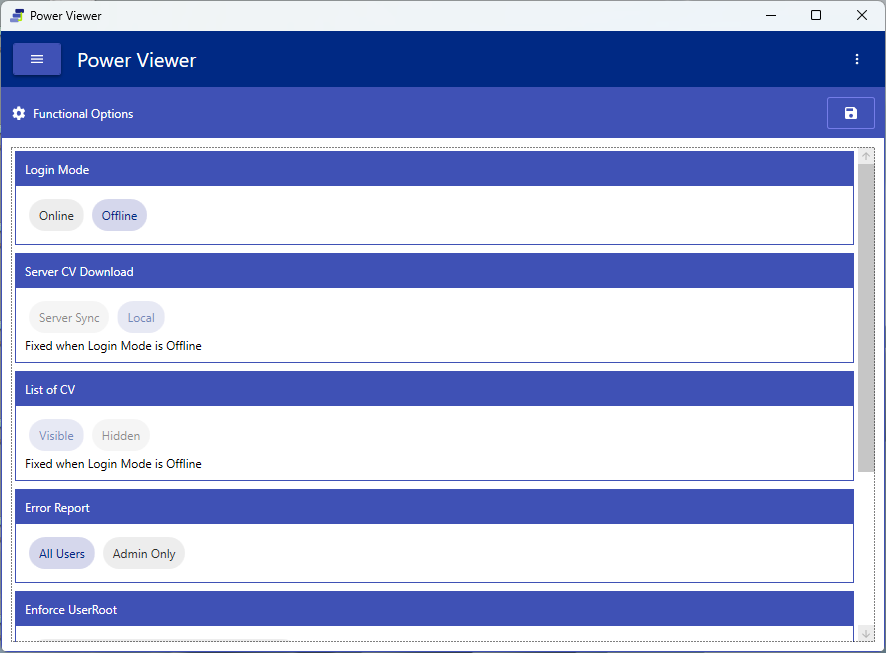
Changes to functional options take effect after the application is restarted.
7.4 HTTP connection settings
These are connection settings such as the proxy used for login and cloud access in general.
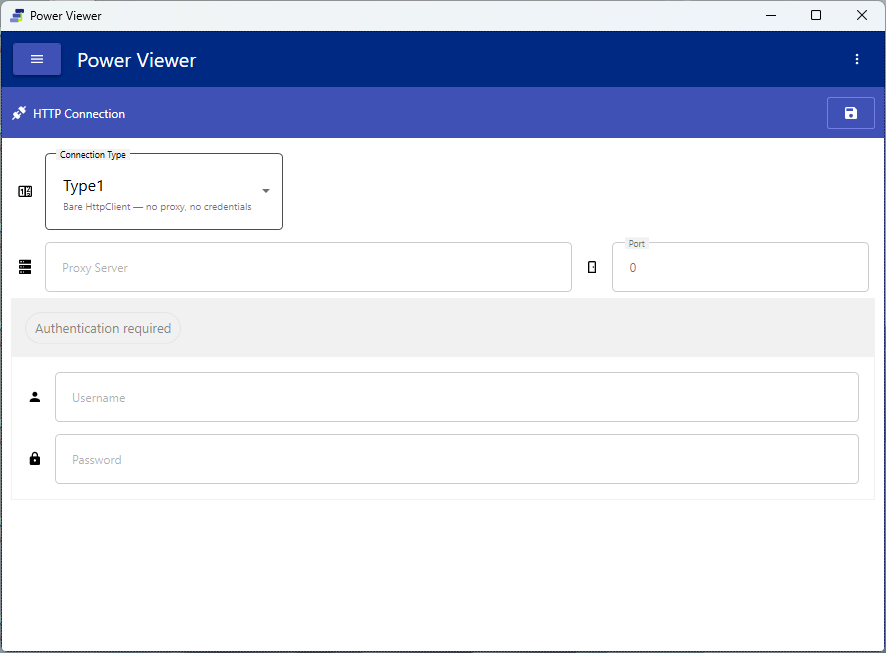
⚠ Incorrect settings may prevent everyone from logging in. Take great care when changing them, and verify with the connection test (5.2). Settings take effect after the application is restarted.
8. Concepts / Appendix
8.1 Understand access control
Access rights are controlled by Album / Application Access Key / Document Access Key / UserGroup / UserAccount.
UserAccount ──(can join multiple)── UserGroup ──holds──▶ Access Key
                                                   │
                              Album ◀──applied to── Key Hole
                                                   │
If the key and key hole match, the Album's Applications / Documents can be viewed- Role: Administrator (can do everything) / GroupPolicyEditor (a Viewer who can edit group policy) / Viewer (no editing rights) / Guest (provisional registration at first login). An Administrator changes Guest to a formal role. Roles can be changed by an Administrator (but you cannot change your own role).
- A UserAccount can join multiple UserGroups (viewable in MyAccount).
- A UserGroup holds Access Keys: Members are treated as holding the same keys, and lose them when they leave.
- The key and key hole metaphor: What a UserGroup holds is the Key, and what an Album has is the Key Hole.
- Application Access Key: Makes all Applications in the corresponding Album viewable (type is View only, one per Album, auto-generated).
- Document Access Key: Has Type / DisplayName / Allow・Deny / setting string. Deny takes precedence (e.g. Full Access ⟨Allow⟩ + Substance denial ⟨Deny⟩ → everything except Substance is viewable). For the list of Types, see 6.4.
- Special UserGroups: All User (all logged-in users including Guests) / All Registered User (all registered users) automatically include members. Giving these groups a key makes an Album public without individual enrollment (these groups cannot be edited or deleted).
8.2 Understand the file structure
Power Viewer itself, the Group Policy File, the Album Database, and the Sequence Folder are connected in a relationship where “each element remembers and references the path of the next.”
Power Viewer ──remembers──▶ Group Policy File ──records──▶ Album Database ──references──▶ Sequence Folder
(the app itself)            (company-specific settings,     (center of eCTD           (actual eCTD files)
                             required)                       management)
                            can record multiple             Local / Azure DB           Local /
Album DBs (Azure not implemented) cloud storage- Power Viewer: The app itself. It remembers the path to the Group Policy File in its initial setup.
- Group Policy File: Company-specific settings. It can record paths to multiple Album Databases. Required for operation in a local environment (placing it on a shared server is recommended; sync/distribution operation is also possible).
- Album Database: The center of eCTD management. Local / Azure DB (not implemented).
- Sequence Folder: The location of the actual eCTD files. You can choose local or cloud storage.
8.3 Glossary
| Term | Description |
|---|---|
| eCTD | The electronic document standard for pharmaceutical marketing authorization applications (electronic Common Technical Document) |
| Sequence Folder | A folder of actual eCTD files containing submissionunit.xml / index.xml |
| SubmissionUnit | A submission unit. It points to an actual eCTD (Sequence Folder); adding one auto-generates an Application |
| Application | An application unit. It bundles one or more SubmissionUnits |
| Album | A logical container that bundles Applications. It has a Key Hole |
| Access Key | A key that represents access rights. Two types: Application Access Key / Document Access Key |
| Helper Window | An auxiliary window that displays a link destination |
| CV | Curriculum Vitae (4.3) |
| Group Policy File | A file that bundles company-specific settings |
8.4 Supported standards and regulatory authorities
Power Viewer supports eCTD v3.2.2 and v4.0, and multiple regulatory authorities including PMDA (JP), FDA (US), and EMA (EU). For the latest details, see the eCTD support status page.
8.5 Troubleshooting / FAQ
- Cannot log in: Check the group policy file path, the HTTP connection settings (7.4), and the license key’s expiration date.
- Cannot open an eCTD / files are not displayed: Check the Sequence Folder path, the User Root Path (4.2), and the cloud storage authentication status.
- Some documents are not visible: Check the Deny setting of the Document Access Key (8.1).
For other frequently asked questions, see the FAQ page.